30. Numbers as text, and copies of your own layer on every place#
Two more things the Numbers sheet puts on the map: the values as text layers, and your own artwork copied onto every place.
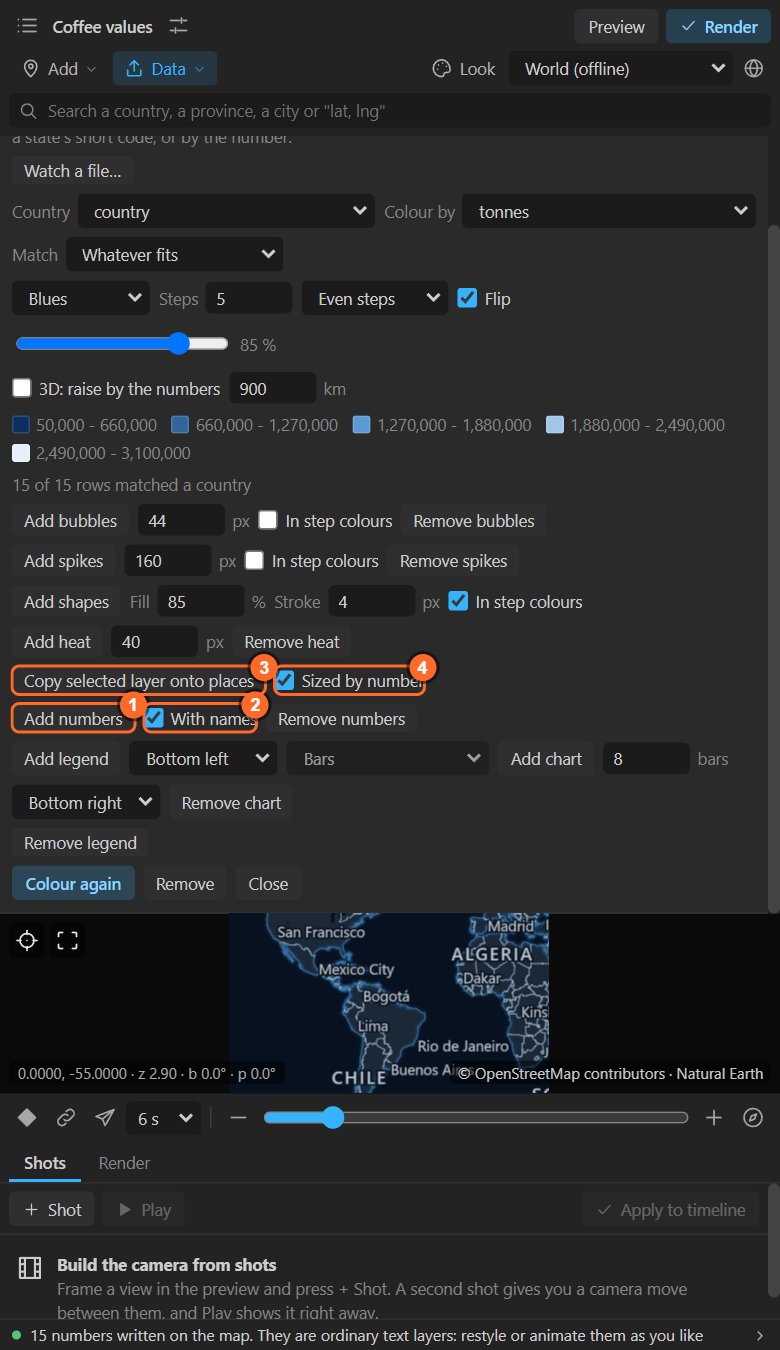
Add numbers#
Add numbers writes every value onto the map as a text layer under its place's circle (or on the place when there are no bubbles). With names puts the place's name above its number.
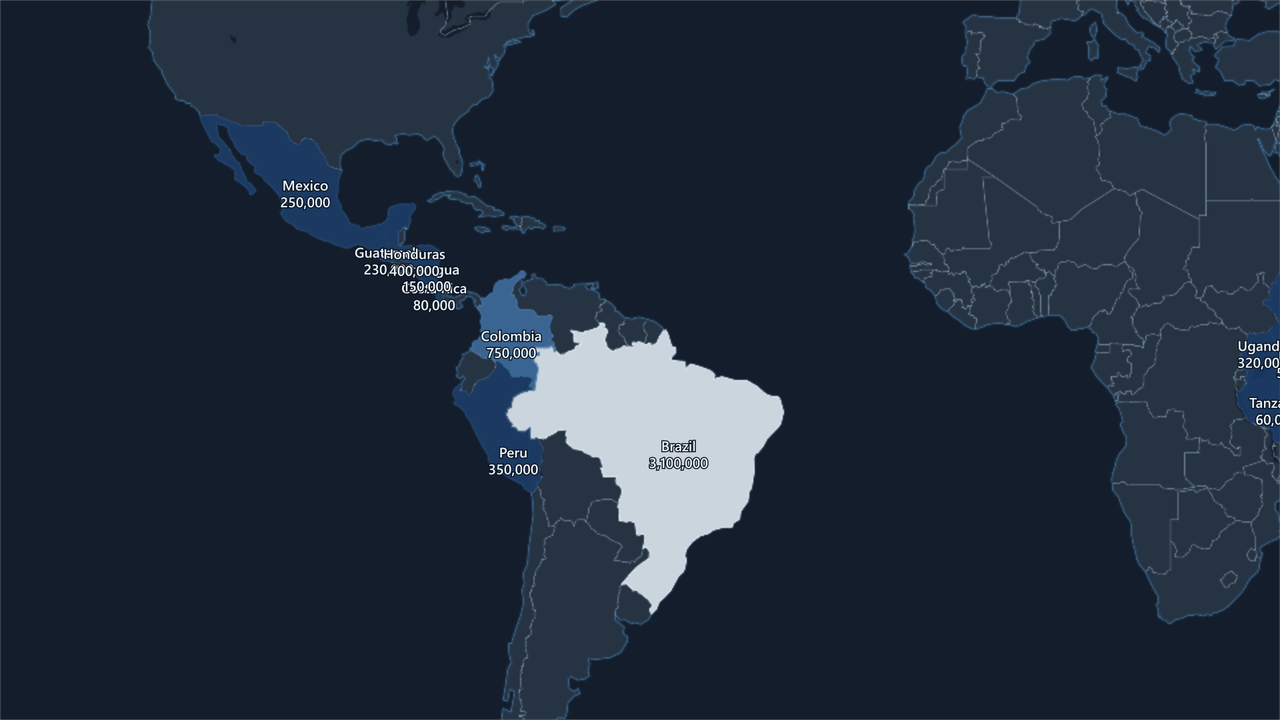
They are ordinary text layers that follow the map: restyle them, animate them with text animators, count them up with an expression of your own. Remove takes them off.
Unlike Auto labels, the numbers do not step out of each other's way: small neighbours (Central America above) overlap. Zoom in, delete the ones you do not need, or move a layer's anchor point to nudge it.
Copy selected layer onto places#
Put your own artwork (an icon, a flag, a photo, a precomp) on every place of the table:
- Make the layer in the map's scene comp and select it.
- In the Numbers sheet, switch Sized by number on or off.
- Copy selected layer onto places.
Every place gets a copy, named after the place and wired to it like an attached layer (chapter 13): it stays on the place while the camera moves. The original is left as it is; hide or delete it.
| Sized by number | Result |
|---|---|
| Off | Every copy has the layer's own size |
| On | Each copy's area stands for its number; the largest keeps the layer's own size, and none shrinks below a fifth |
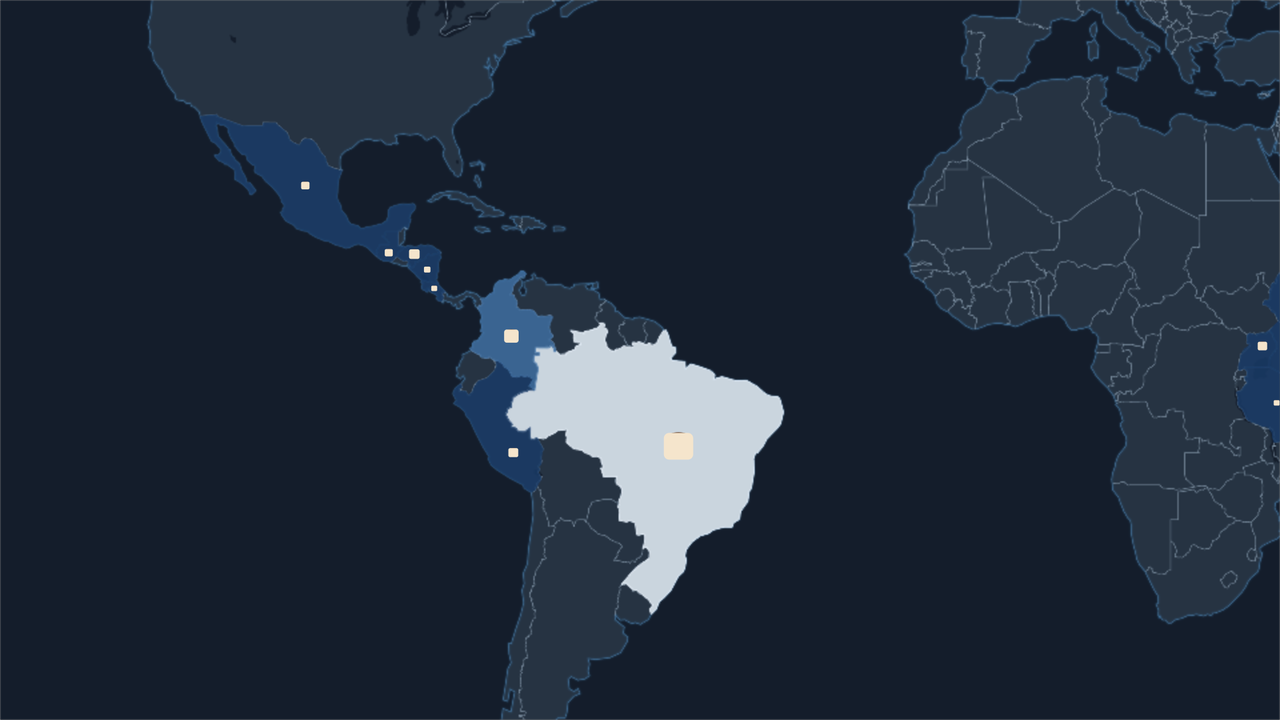
It also works without numbers: with the places of the last imported file, every place gets a copy (an icon per city, a photo per stop).
Recipes#
-
A different picture on every country (its flag, its leader): copies are all the same layer, so
use Auto labels with your own design and a
{flag}picture layer instead (chapter 20), which takes a picture per place from a folder. - Your logo on every store: import a CSV of store locations, select your logo, Copy selected layer onto places with Sized by number off.
- Pop them on: select the copies in the timeline, keyframe Scale from 0, then use Animation > Keyframe Assistant > Sequence Layers or offset them by hand.
