9. The Shots tab#
The Shots tab builds a whole camera from a list of views. Each shot is a view the camera stops on. Between two shots is a move: how the camera gets from one to the next. Play it in the preview as often as you like; when it is right, Apply to timeline writes it as keys.

Build a shot list#
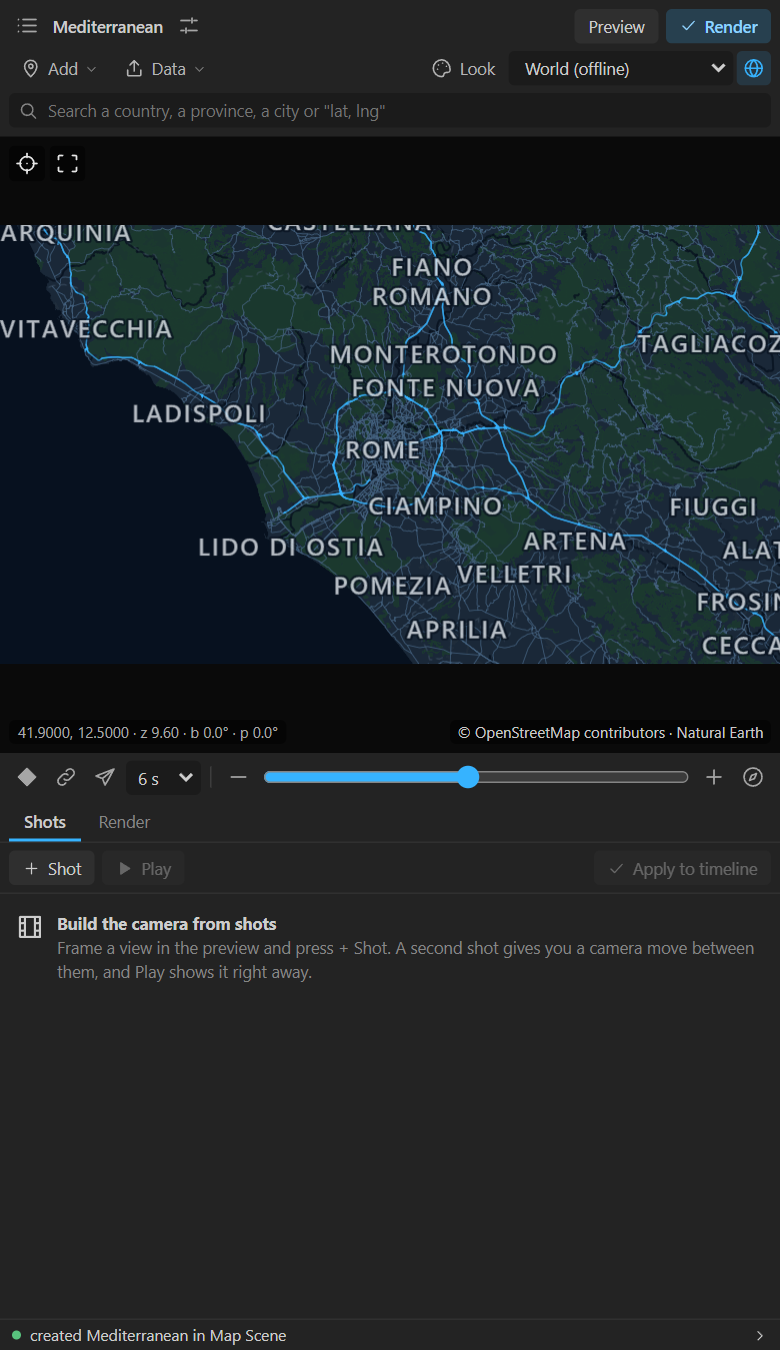
- Select a map and open the Shots tab under the strip.
- Frame the first view in the preview (search a place, zoom, tilt). Click + Shot.
- Frame the next view. + Shot again. Each new shot goes after the selected one, or at the end.
- Click Play (or press Space) to watch the camera in the preview. Nothing is rendered and After Effects is not touched.
- Apply to timeline when it is right.
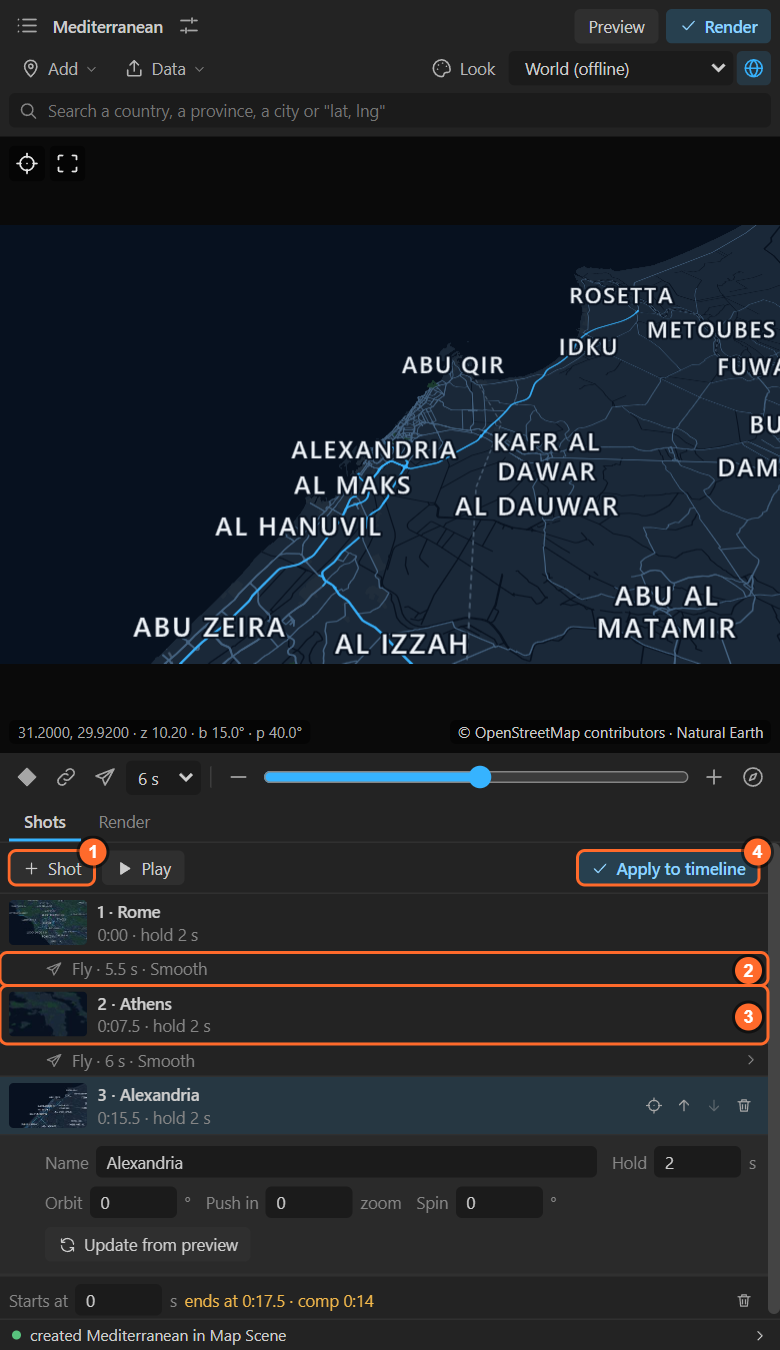
- + Shot takes the preview's view.
- A move row: click it to change the move.
- A shot row: click it to change the shot. Double-click it to see it in the preview.
- Apply to timeline is blue while the list has changes that are not in the timeline yet.
A shot is named after the place you searched for last, or what the preview shows. Its thumbnail is the view.
Moves#
Click a move row to open it:
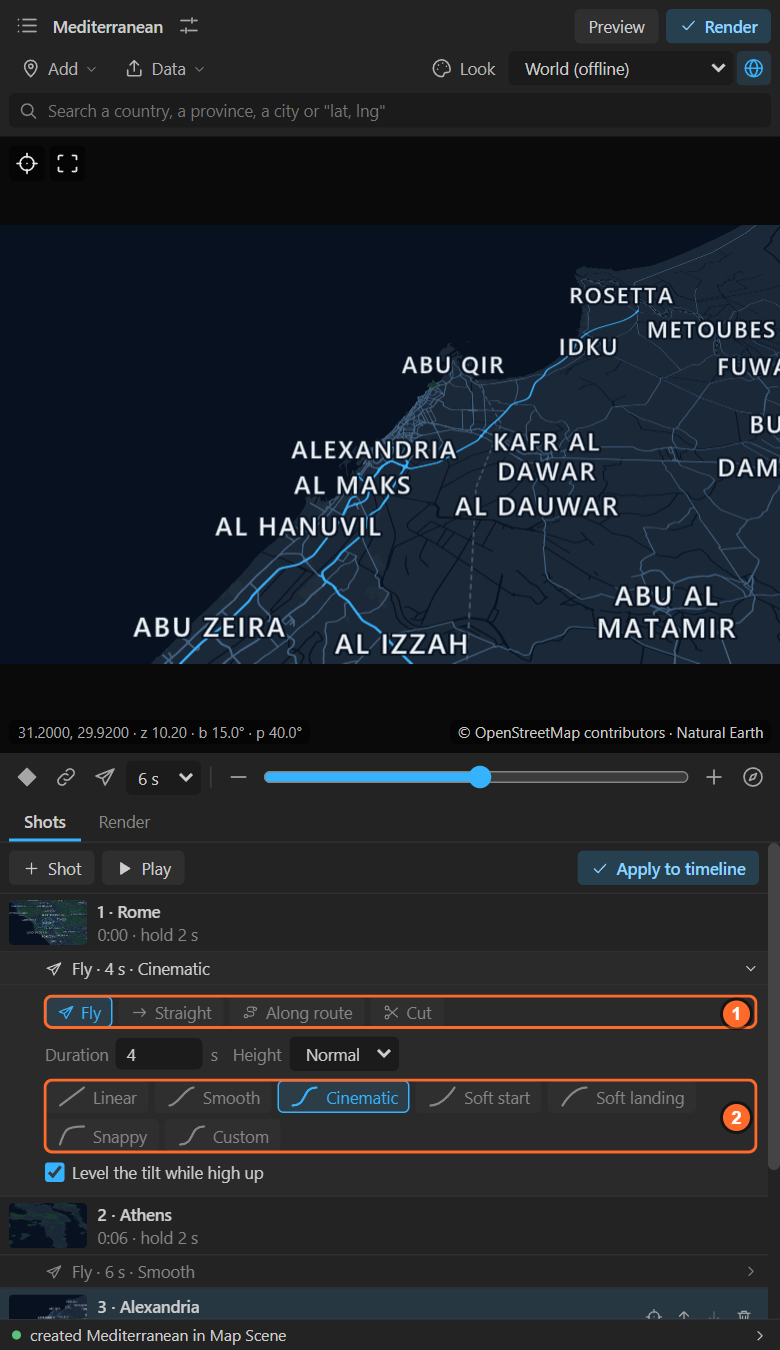
| Move | What the camera does | Use it for |
|---|---|---|
| Fly | Rises out of the first shot, travels and lands on the next in one curve, without stopping | Anything far apart: cities, countries, continents |
| Straight | Moves and zooms evenly, without rising | Two views close together: a street to the next street |
| Along route | Travels along the great-circle route between the two shots, like an airliner | Journeys, where the path itself is the story |
| Cut | Jumps to the next shot | A hard edit |
Settings of a move:
| Setting | What it does |
|---|---|
| Duration | Seconds the move takes. A new move gets a length suited to the distance |
| Height | Fly and Along route: Low, Normal or High, how far the camera rises on the way |
| Easing | How the speed changes, see below |
| Level the tilt while high up | Fly and Along route: a tilted shot looks straight down while the camera is high, and tilts again on the way down. On by default; off keeps the tilt all the way |
| Stay level | Along route: keeps the zoom between the two shots instead of rising (for short routes) |
| Turn with the route | Along route: the camera turns with the direction of travel, looking a little ahead, with smoothed corners |
Easing#
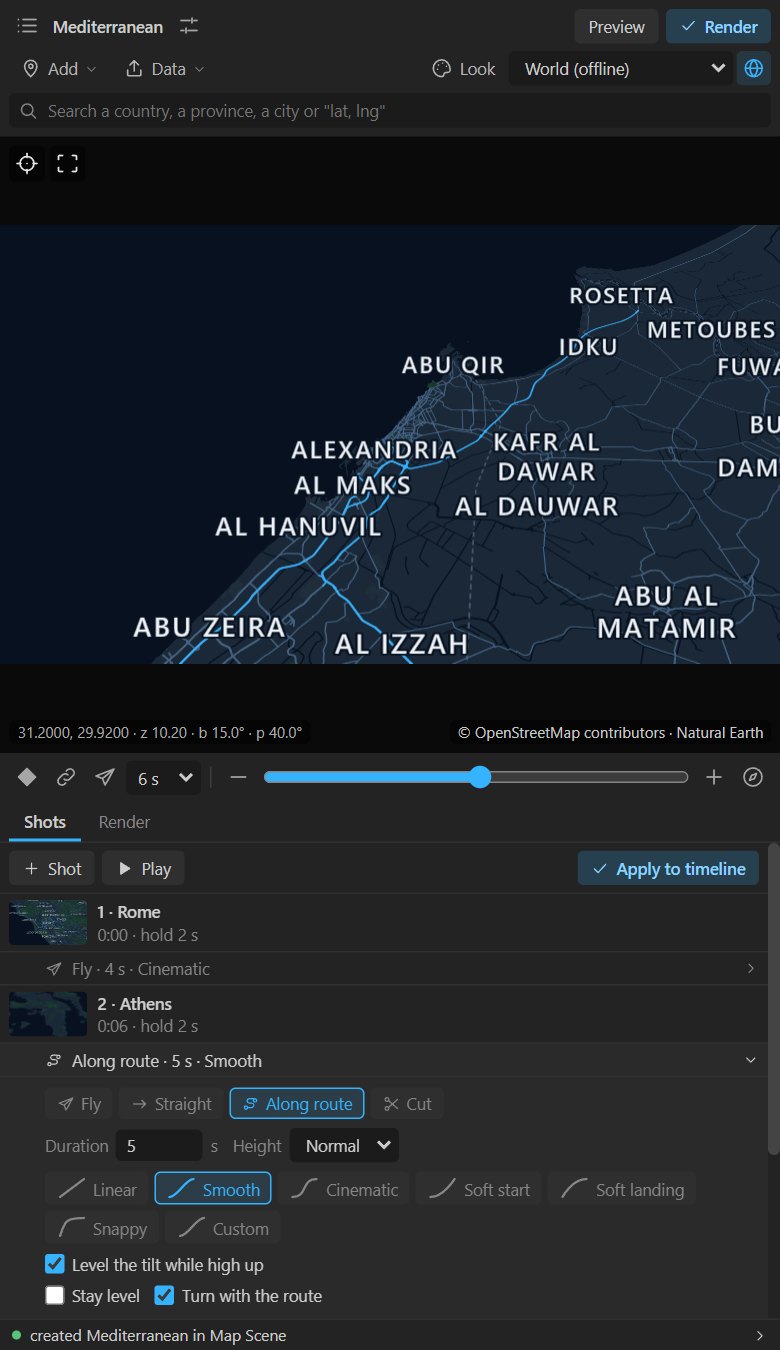
| Easing | Feels like |
|---|---|
| Linear | Constant speed |
| Smooth | Easy Ease at both ends (the default) |
| Cinematic | A long, gentle start and landing |
| Soft start | Starts gently, arrives at speed: for a move that hands over to the next |
| Soft landing | Leaves at speed, settles gently |
| Snappy | A quick move with a long settle |
| Custom | Your own curve: x1, y1, x2, y2, as in After Effects' speed graph or CSS cubic-bezier |
Each chip draws its curve, so you can see the shape.
Shots#
Click a shot row to open it:
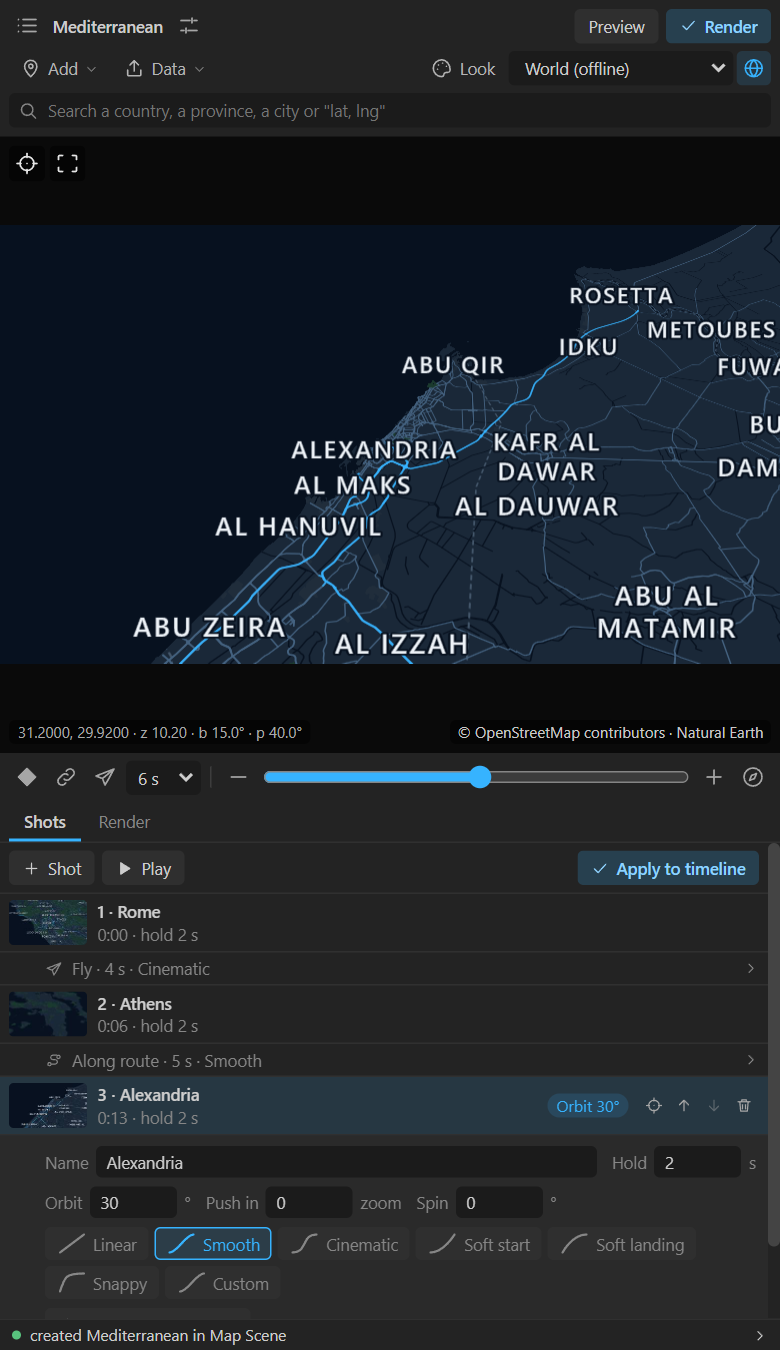
| Setting | What it does |
|---|---|
| Name | The shot's name, also on its marker in the timeline |
| Hold | Seconds the camera stays on this shot before the next move. Default 2 |
| Orbit | Degrees the camera turns around the centre during the hold. Negative turns the other way |
| Push in | Zoom levels gained during the hold. Negative pulls out |
| Spin | On the globe only: degrees of longitude the globe turns during the hold |
| Update from preview | Replaces the shot's view with the preview's |
Orbit, push and spin need a hold longer than 0. When one is set, the hold gets its own easing, and the row shows it as a tag (Orbit 30°).
The buttons at the right of a row: show (the target: the preview goes to the shot and the time indicator to its time), up, down, remove.
Apply to timeline#
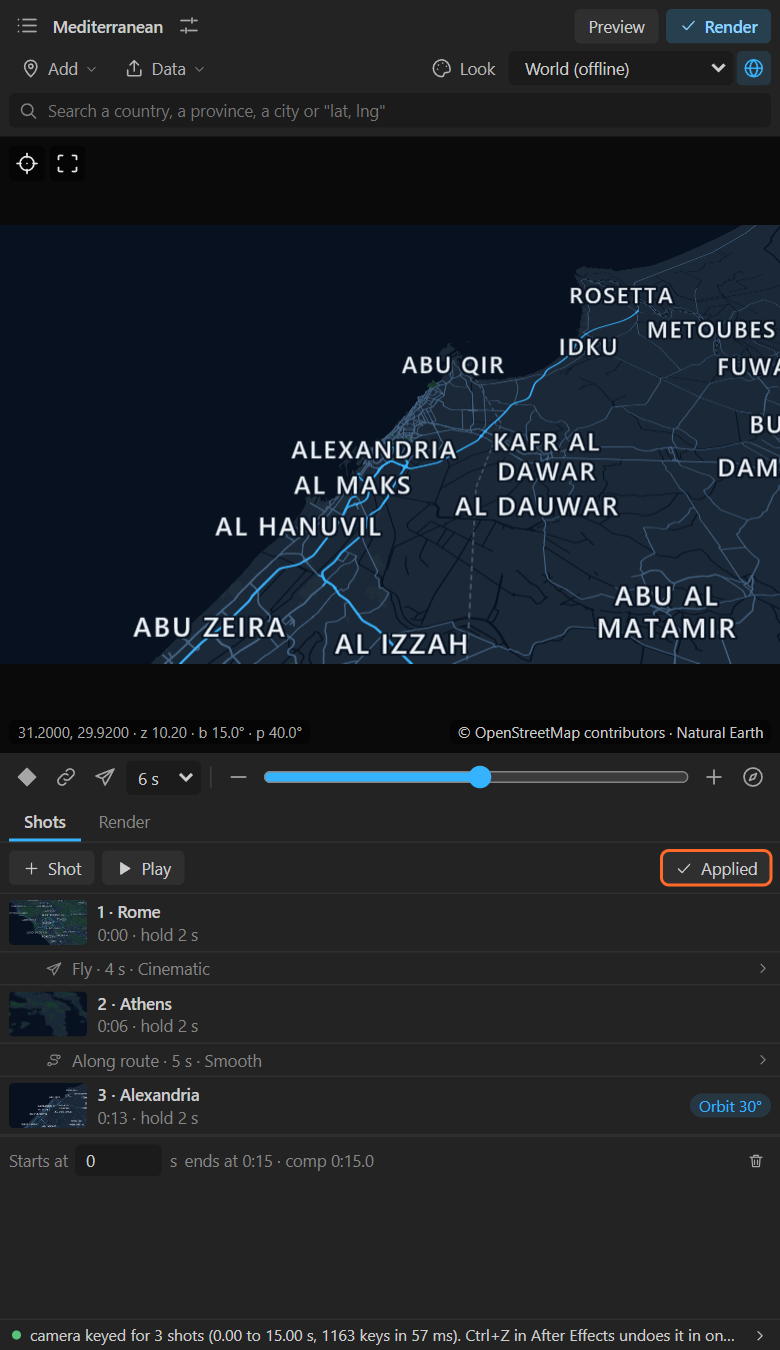
Apply to timeline writes the list as keys on the map layer's five controls, plus a layer marker named after each shot, in one undo step. After that, the button reads Applied until you change the list.
- Change and apply again: the keys between the list's start and end are replaced. Keys outside that range are left alone.
- The comp is too short: the line under the list says so in orange; Apply makes the map and its scene longer to fit.
- Starts at: the scene time of the first shot. Move the whole list later in the comp.
- You edited the keys by hand: the tab warns you that Apply will replace the keys in its range.
The list is saved with the map layer, so it travels with the project and is there when you open it again.
Remove the list#
The bin at the bottom right removes the whole shot list and keeps the keys. Alt+click it to remove the keys as well.
Recipe: a three-city tour in two minutes#
- New map with Globe on. Search the first city, frame it, tilt it, + Shot.
- The same for the second and third city.
- First move: Fly, Cinematic. Second move: Along route, Turn with the route.
- Last shot: Hold 3 s, Orbit 30°.
- Play. Adjust. Apply to timeline. Preview.
- Add a Route (chapter 12) along the same cities, starting where the move starts.
Related#
- 8. The quick camera: one move without a list.
- 16. Importing files: Camera on an imported line makes shots along it.
- 12. Routes
