2. The panel at a glance#
LazyMapLayers is one panel in After Effects (Window > Extensions > LazyMapLayers). Everything it does starts from one of eight areas. This chapter names each one, so the rest of the manual can say "the tool row" or "the strip" and you know where to look.
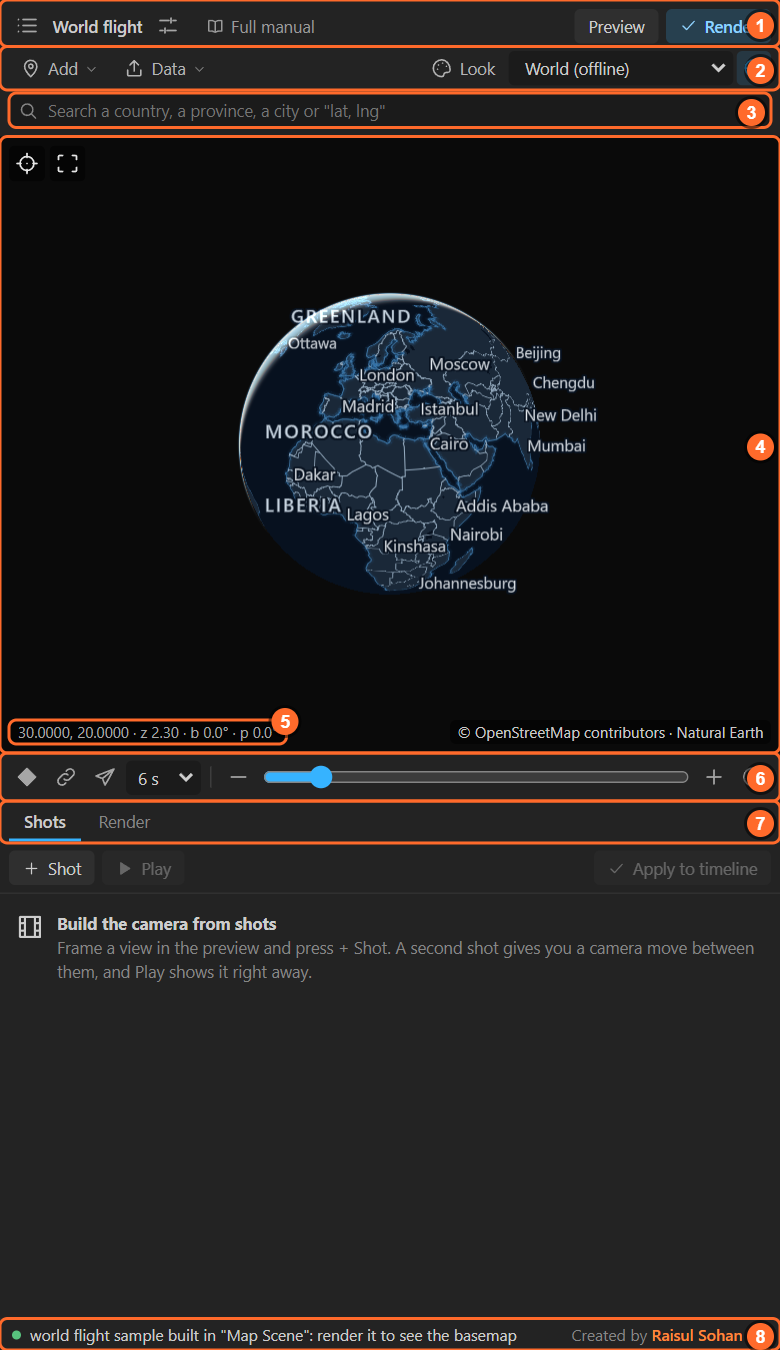
| # | Area | What it is for |
|---|---|---|
| 1 | Header | The map you are working on, its settings, and the two render buttons |
| 2 | Tool row | The Add and Data menus, and the look of the map |
| 3 | Search | Find a country, a province, a district, a city, or a lat, lng
|
| 4 | Preview | The exact frame the map will render. Moving it moves the camera |
| 5 | Readout | Latitude, longitude, zoom, bearing and tilt of the frame |
| 6 | Strip | Keyframe the camera, link it live, fly, zoom |
| 7 | Tabs | Shots (plan the camera shot by shot) and Render (quality, passes, the render queue) |
| 8 | Status line | The last thing the panel did. Click it for the whole log |
1. The header#

- Maps (the list icon): the maps in this project, New map, the two samples and About. See chapter 4.
- Map settings (the sliders icon): the map's name, its basemap and the globe. It only shows once a map is selected. See chapter 5.
- Full manual (the book): opens this manual in your browser. Point at it for a reminder of what it holds. Each time the panel opens, it glows softly twice, so you know where help is.
- Preview: renders the basemap at half size without supersampling. Fast, for checking the timing.
- Render: renders at full quality with the settings of the Render tab. Only frames that changed since the last render are drawn again.
The name between the two icons is the selected map. When no map exists yet, the two render buttons are replaced by New map.
2. The tool row#
The tool row holds two menus, Add and Data, and then three controls that set what the map is:

| # | Control | What it does | Chapter |
|---|---|---|---|
| 1 | Add | Puts things on the map: pins, callouts, routes, highlights, your own layers, labels, borders, the 3D camera | below |
| 2 | Data | Brings data in and takes it out: files, numbers, OpenStreetMap, your own drawing | below |
| 3 | Look | Colours, relief, sky, imagery, terrain, scale bar, inset map | 22–26 |
| 4 | Basemap | What the map is drawn from: the world, or an area you downloaded | 5 |
| 5 | Globe | A planet at low zoom that turns into the flat map by zoom 8 | 5 |
Click Add or Data to open its list; click a tool in the list to use it. The manual writes this as Add > Pin. Escape or a click anywhere else closes the list.
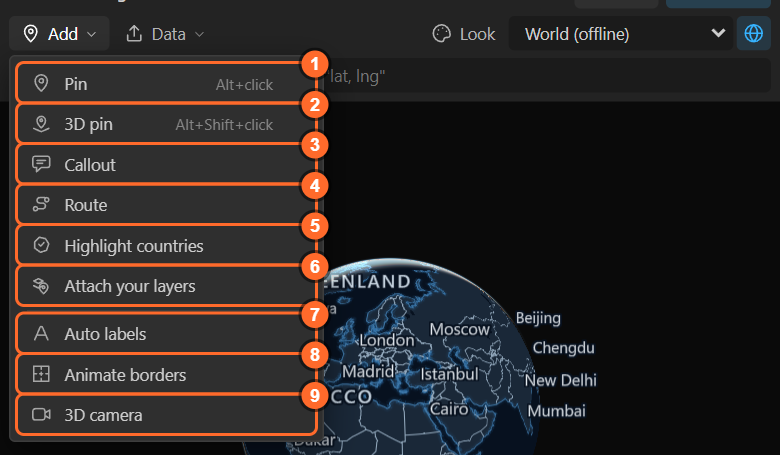
| # | Tool | What it does | Chapter |
|---|---|---|---|
| 1 | Pin | A dot that stays on a place while the camera moves (or Alt+click the map) | 10 |
| 2 | 3D pin | A pin that lies flat on the ground under the 3D camera (or Alt+Shift+click) | 10 |
| 3 | Callout | A leader line and a title box next to a place | 11 |
| 4 | Route | A line between two places that draws on | 12 |
| 5 | Highlight countries | Fills countries, provinces or districts with colour | 14 |
| 6 | Attach your layers | Pins your own layers (an icon, a photo, a precomp) to a place | 13 |
| 7 | Auto labels | Names of countries, cities, seas and mountains as text layers | 20 |
| 8 | Animate borders | Country borders draw on over four seconds | 21 |
| 9 | 3D camera | An After Effects camera that matches the map, for your own 3D layers | 8 |
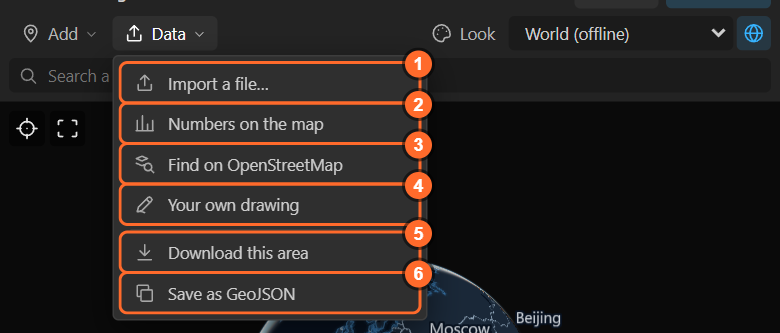
| # | Tool | What it does | Chapter |
|---|---|---|---|
| 1 | Import a file | GPX, TCX, KML, KMZ, GeoJSON, CSV or a zipped shapefile | 16 |
| 2 | Numbers on the map | Colours the map from a table (CSV) | 28 |
| 3 | Find on OpenStreetMap | Finds rivers, parks, airports, buildings… in the area you see | 18 |
| 4 | Your own drawing | Turns a Pen tool path you drew into a route or an area | 17 |
| 5 | Download this area | Street-level detail for the area in the preview, kept offline | 27 |
| 6 | Save as GeoJSON | Writes what is on the map back out to a file | 19 |
While a tool waits for a click on the map, Add lights up and shows that tool's icon, so you can see what is armed with the list closed. A tick in the list marks what is on: the armed tool, an open sheet, or the 3D camera once the map has one. Most tools are greyed out until a map exists.
3. Search#
Type a place in any of 26 languages: Dhaka, ঢাকা, 東京, Lagos. Countries, provinces,
districts, cities, seas and mountains are found offline. Type 23.81, 90.41 to go to a
coordinate. For a street or an address, the last row offers Search OpenStreetMap. See
chapter 6.
4. The preview#
The preview is the frame of the map at the current time, in the shape of your comp.
- Drag to move, scroll to zoom, right-drag to turn and tilt.
- Alt+click drops a pin anywhere, without picking the Pin tool.
- Esc ends the tool that is on. Space plays the shot list.
Two buttons sit in its top-left corner:
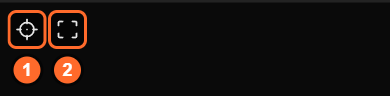
- Match AE: shows the camera of the current time in After Effects in the preview. Use it after you scrub the timeline.
- Exact look: draws names and lines at the size they will render. Off, they are enlarged so you can read them in a small panel.
The credit line at the bottom right names the data the frame is drawn from.
5. The readout#
30.0000, 20.0000 · z 2.30 · b 0.0° · p 0.0° is the frame's latitude, longitude, zoom,
bearing (turn) and pitch (tilt). These are the same five numbers the map layer carries as
controls in After Effects. When you move the pointer over the map, a second line says what is under
it: the place, its district, its province and its country.
6. The strip#

- Keyframe view: keys the preview's view at the current time.
- Live link: while it is on, moving the preview moves the map at the current time.
- Fly here: keys a smooth flight from the camera at the current time to the preview.
- The length of that flight, 2 to 20 seconds.
- – 7. Zoom out, the zoom slider, zoom in.
- North up. Alt+click it to also look straight down.
All of these are in chapter 8.
7. The tabs#
- Shots builds the camera from a list of views, with a move between each two. See chapter 9.
- Render holds the supersampling, motion blur, passes and the list of render jobs. See chapter 36.
8. The status line and the log#
The bottom line repeats the last thing the panel did, with a green dot when it worked and in red when it did not. Click it to open the whole log. At its right end, Created by Raisul Sohan opens this manual in your browser.
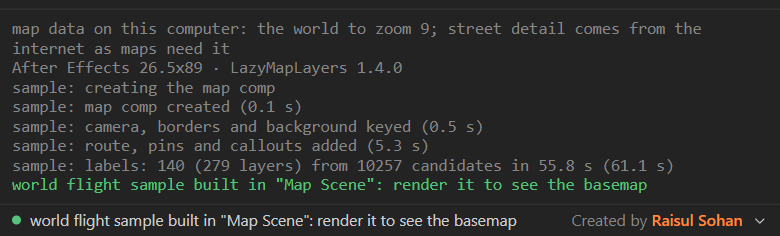
The log is the first place to look when something does not happen. Report a problem in About (chapter 4) attaches it to a report for you.
Keys#
| Key | Does |
|---|---|
| Esc | Ends the tool that is on |
| Space | Plays the shot list in the preview |
| Alt+click on the map | A pin |
| Alt+Shift+click on the map | A 3D pin |
| Alt+click on North up | North up and looking straight down |
Related#
- 3. How the panel thinks: what a "map" is in After Effects terms.
- 7. Moving the preview: everything about steering the preview.
