17. Your own drawing with the Pen tool#
Sometimes the line you want is not in any file: a cruise that goes this way and not that, a zone someone sketched in a meeting. Draw it with After Effects' own Pen tool over the map, and the panel turns it into a route or an area that follows the map from then on, curves and all.
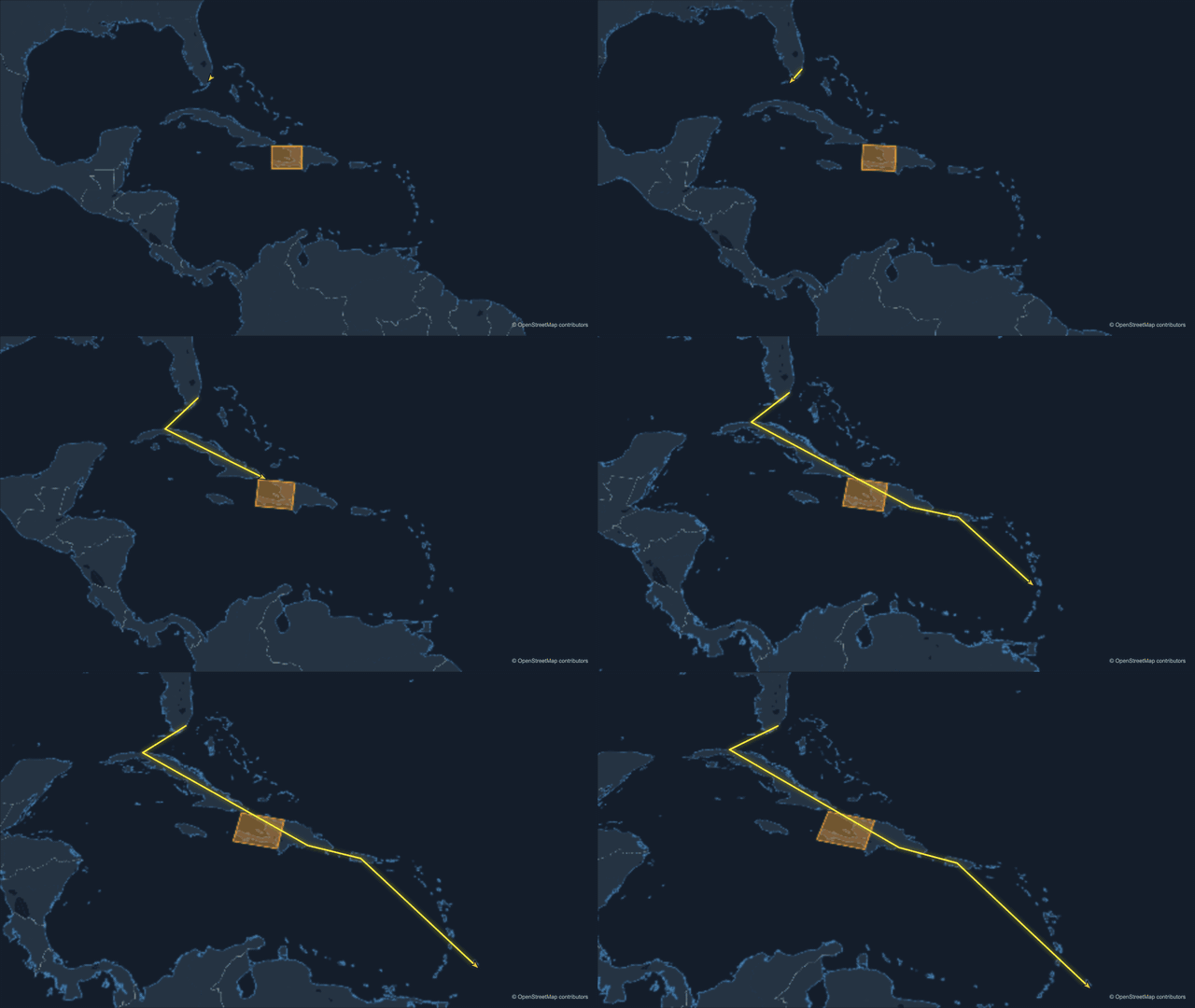
Step by step#
-
In the map's scene comp, at a time when the camera shows the area, draw over the map with the Pen tool:
- a new shape layer (click the Pen with no layer selected), or
- masks on any 2D layer.
Open paths become lines; closed paths become areas. Draw as many as you like on one layer, or several layers.
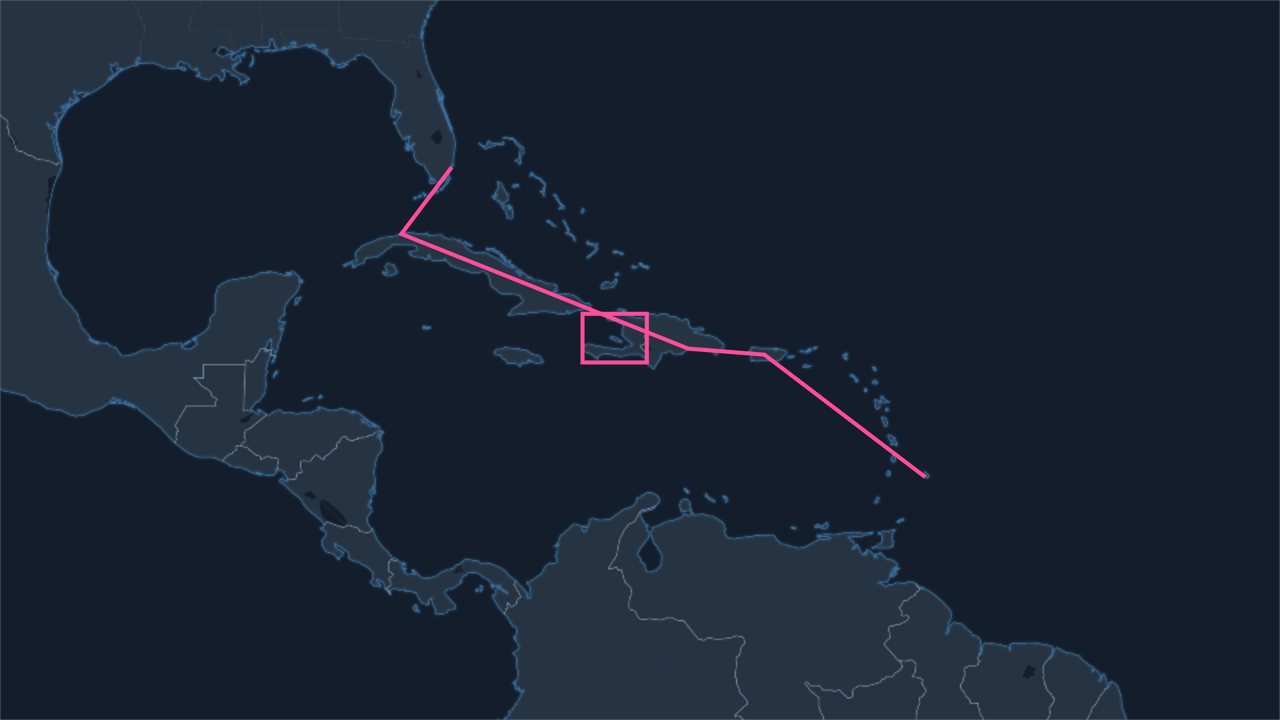
-
Select the layer (or several) in the timeline.
-
Click Data > Your own drawing.
The drawing is read where the camera is at the current time and opens like an imported file:
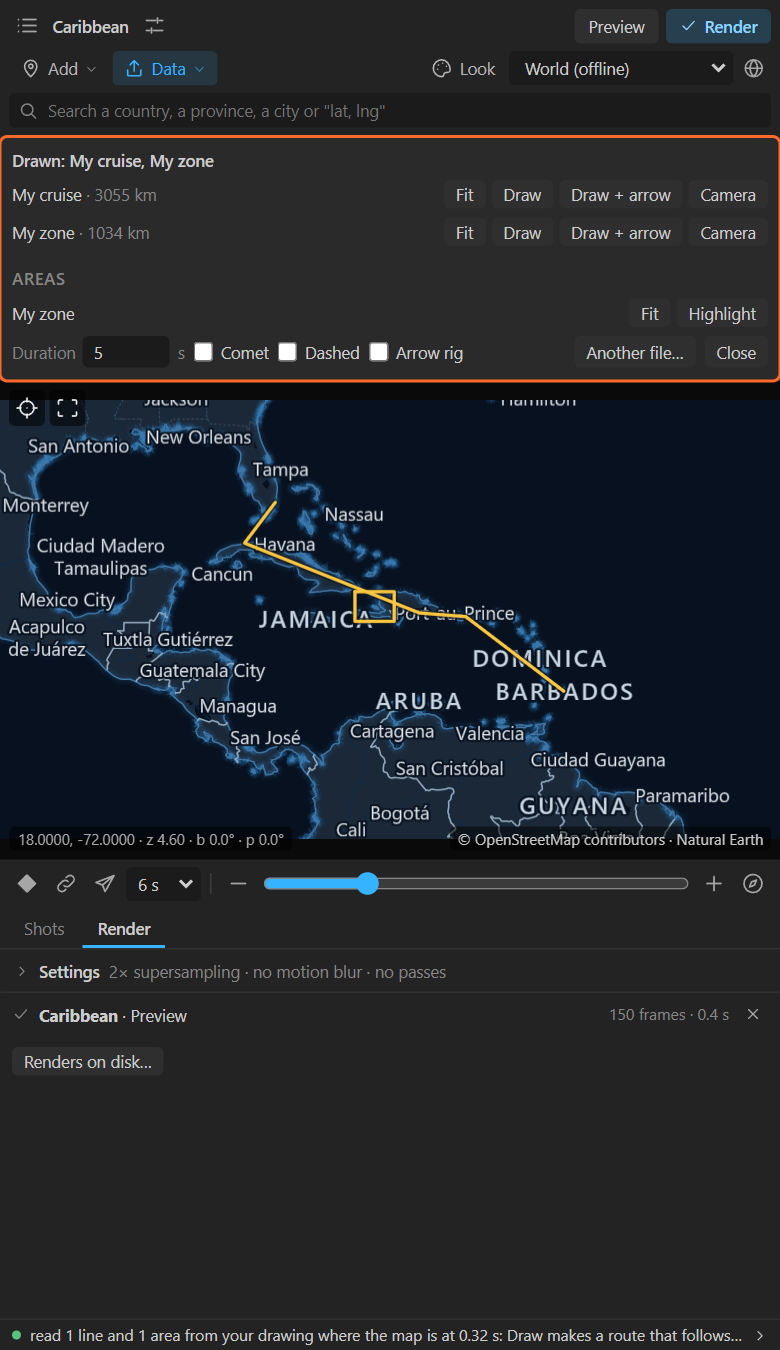
- For lines: Draw, Draw + arrow or Camera, with Duration, Comet, Dashed, as for any import (chapter 16). For areas: Highlight.
- Hide or delete your drawing. It stays as you left it, fixed on screen; the new route and area follow the map.
What is read#
- Bezier curves are kept: a curved path stays curved on the map.
- Stars, polygons, rectangles and ellipses of a shape layer are not paths yet: select them and use Layer > Convert To Bezier Path first.
- 2D layers only. A 3D layer's drawing cannot be read back onto the ground.
- A path drawn where there is no ground (the sky of a tilted map, around the globe) is left out, and the log says which.
Why draw instead of importing?#
| Draw | Import |
|---|---|
| Fast for a rough shape you invent on the spot | Exact for a shape that exists (a track, a boundary) |
| Uses the tools you know | Needs a file |
| Accurate to the pixels you drew at that zoom | Accurate to the data |
Draw at the closest zoom the shape will be seen at: a line drawn over a whole continent is only as precise as a few pixels of that continent.
