4. The Maps screen#
The list icon at the top left of the panel opens the Maps screen: the maps in this project, a new map, two ready-made samples, and About.
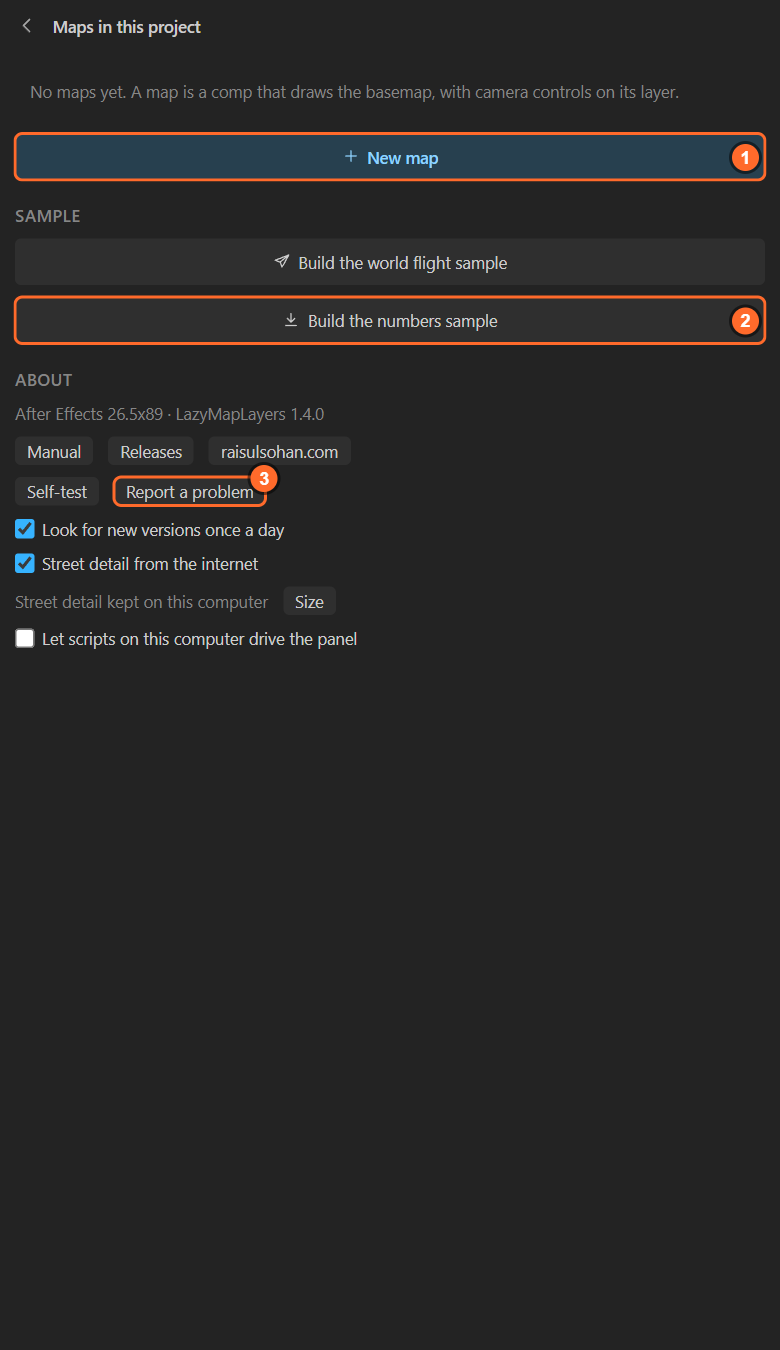
The maps in this project#
Every map in the open project is a card with its name, size, frame rate, length and the scene comp it lives in. A Shots tag means it has a shot list (chapter 9); a 3D camera tag means it has the matched camera (chapter 8).
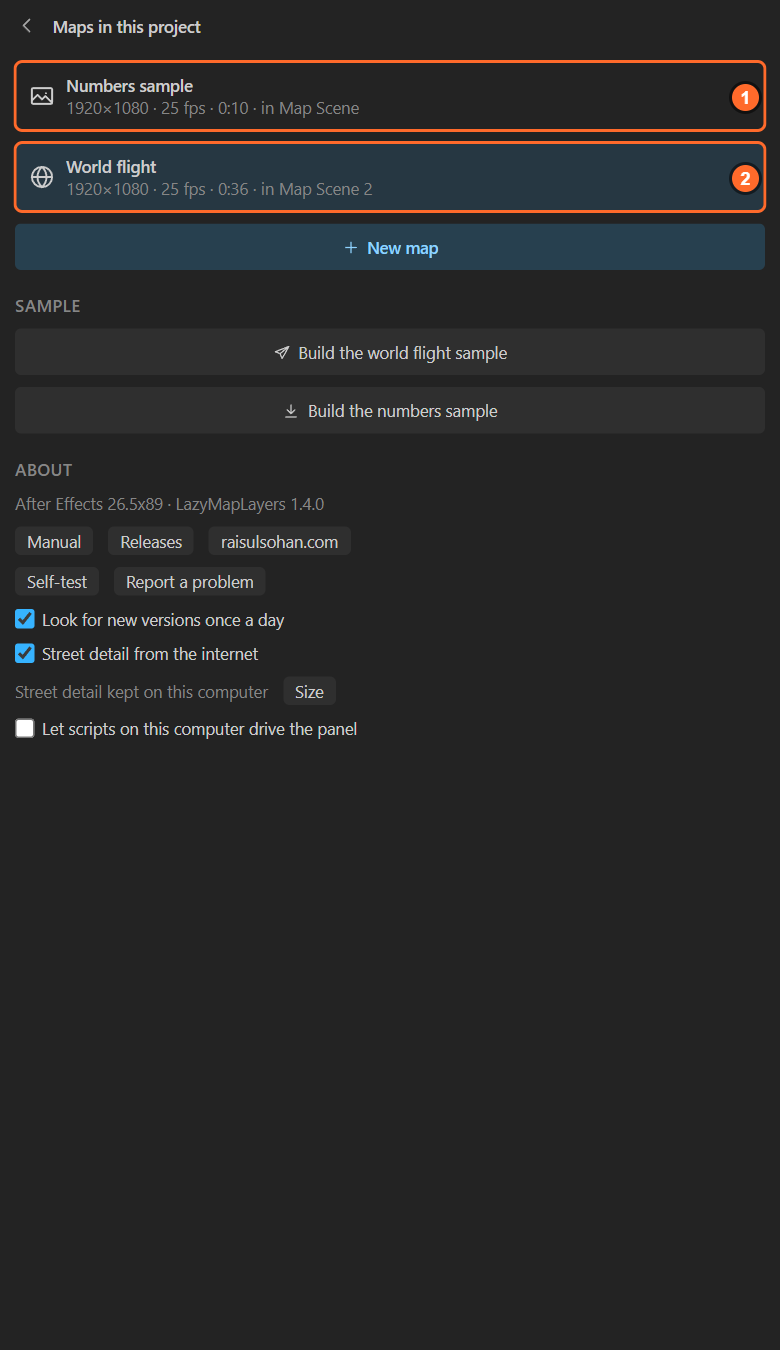
Click a card to select that map. The header, the tools, the preview and the Render tab all work on the selected map. Selecting a map also opens its scene comp in the After Effects viewer; it changes nothing in the project.
The panel reads the maps from the project itself, so a project made on another computer shows its maps here as soon as it is open. If you duplicate a scene in After Effects, the copy gets a map of its own the next time the panel looks (the log says so).
New map#
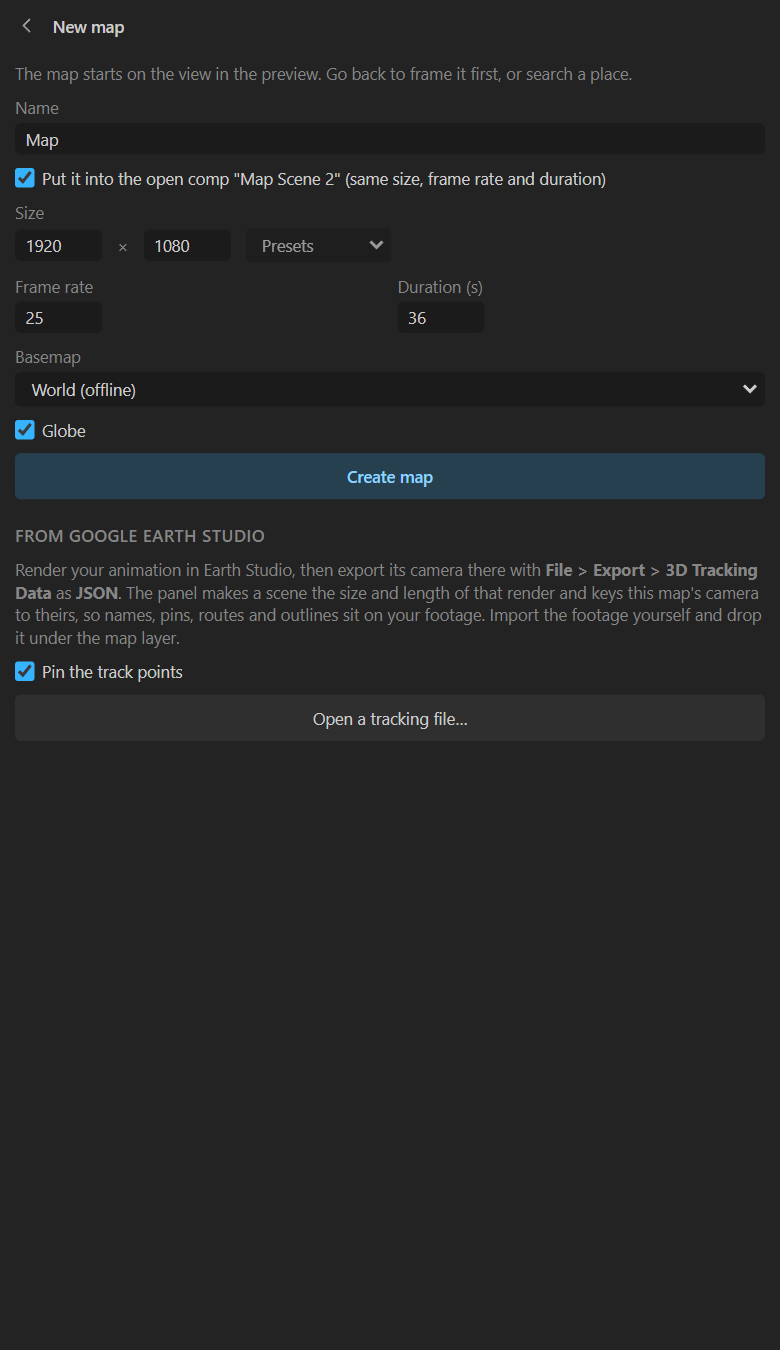
| Field | What it does |
|---|---|
| Name | The map comp's name. The panel proposes one from the place in the preview: Osaka Map |
| Put it into the open comp "…" | Shown when a comp is open. Ticked: the map goes into that comp at its size, frame rate and length. Unticked: a new scene comp called Map Scene |
| Size | Width and height in pixels, or a preset: 1920 × 1080, 3840 × 2160, 1080 × 1920 (vertical), 1080 × 1080 (square) |
| Frame rate, Duration (s) | For a new scene. Default 25 fps and 30 seconds |
| Basemap | World, or an area you downloaded (chapter 27) |
| Globe | Start as a globe (chapter 5) |
| Create map | Builds it. One undo step |
The map starts on the view in the preview. Frame your place first (search it, scroll to the zoom), then make the map.
The section From Google Earth Studio at the bottom makes a map whose camera follows an Earth Studio render: see chapter 37.
The two samples#
Samples are the fastest way to see what the panel can do, and to learn by taking a finished scene apart. Each builds a complete scene in a few seconds; press Preview or Render to draw the basemap.
Build the world flight sample#
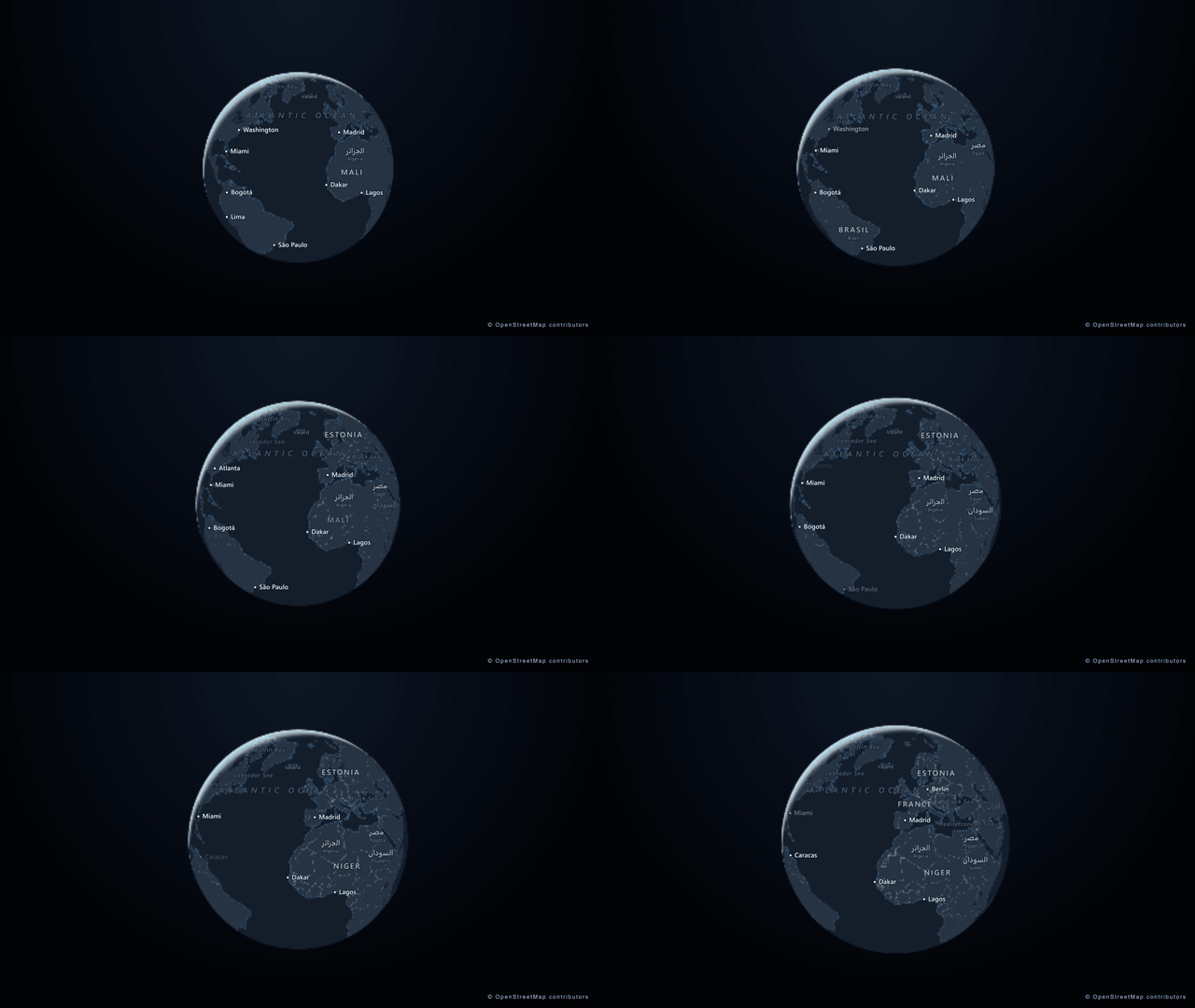
A 36-second scene, built only from the panel's own features:
| Time | What happens |
|---|---|
| 0–6 s | The globe turns in space while the country borders draw on |
| 6–16 s | One continuous flight down to the Eiffel Tower in Paris |
| 16–21 s | A slow orbit, with a pin and a callout |
| 21–33 s | A flight to Tokyo along a great-circle route that draws on |
| 33–36 s | Arrival, with a pin and a callout |
Country and city names in their own languages run along the whole timeline.
The street-level ending needs the two cities downloaded: move the preview over Paris, Download this
area, name it paris; the same for Tokyo as tokyo; then build the sample again.
Build the numbers sample#
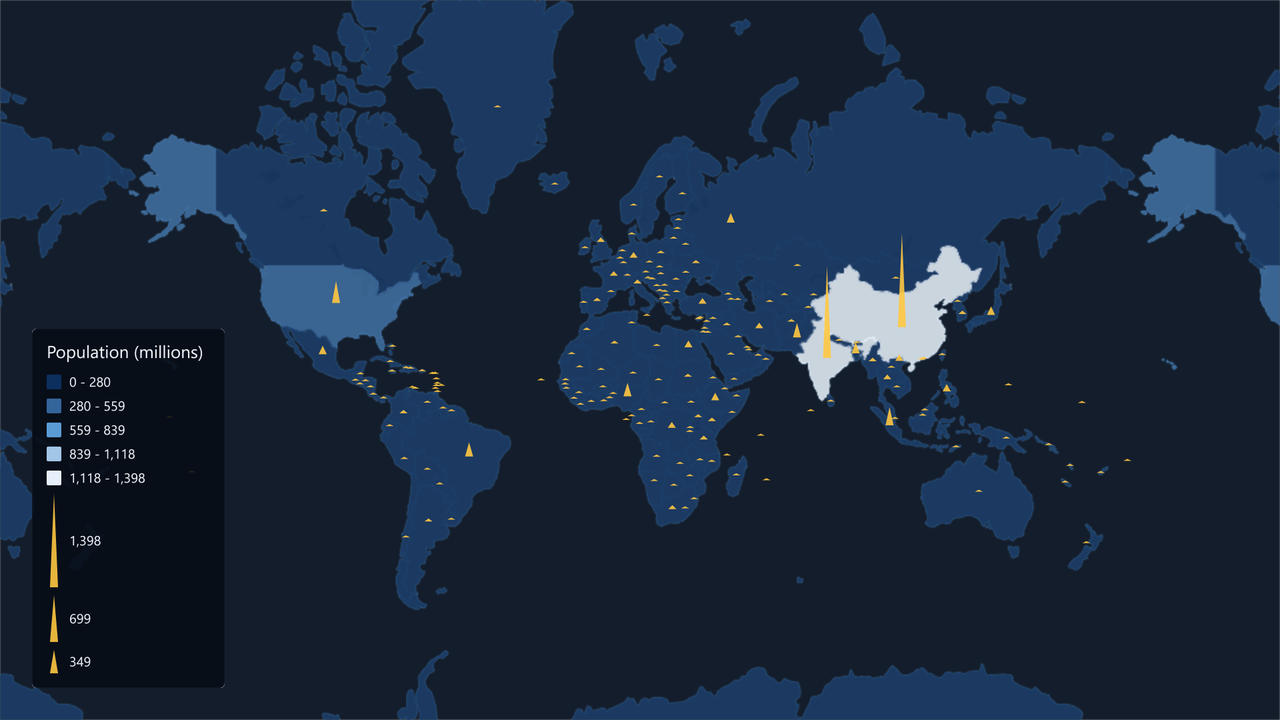
A world map of every country coloured by its population, from the data that comes with the panel, with spikes for the numbers and a legend. Take it apart, then bring your own table (chapter 28).
About#
Scroll to the bottom of the Maps screen:
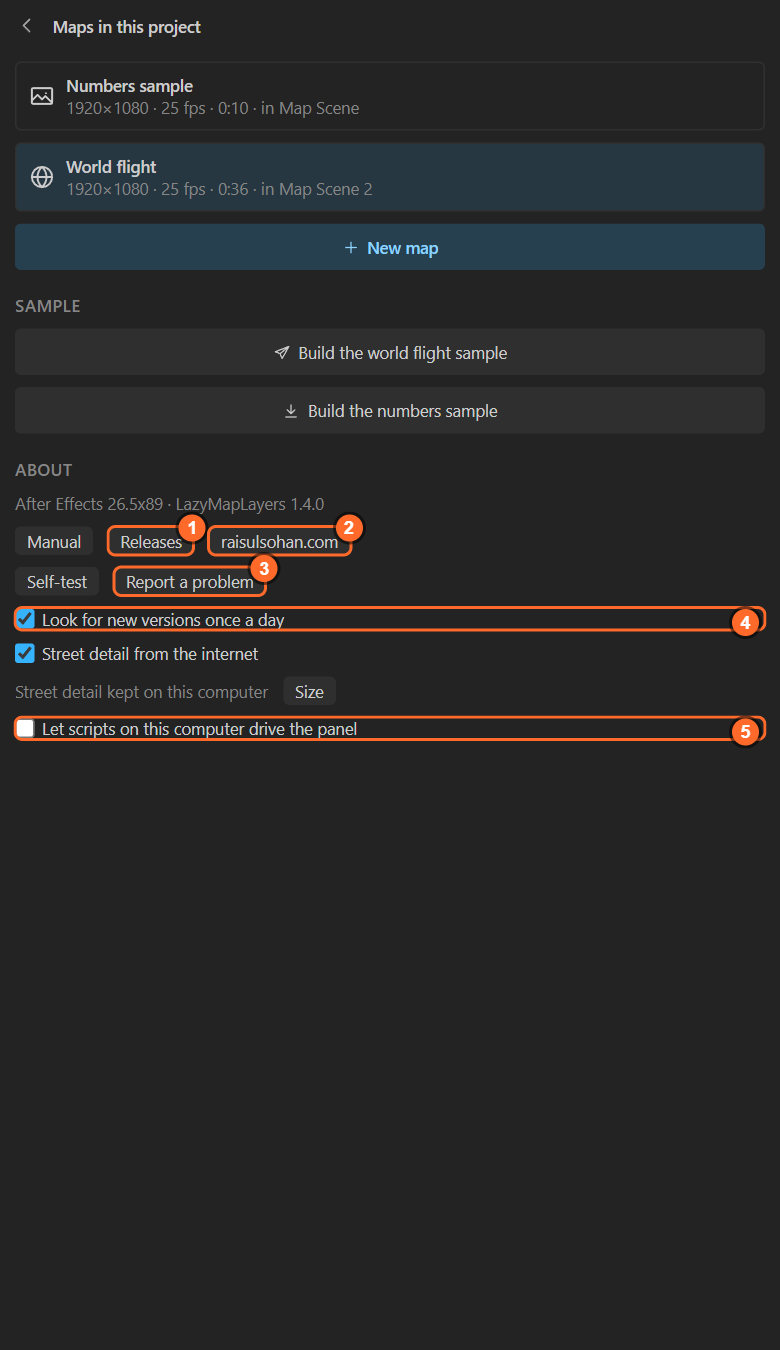
Manual, the first button under the versions, opens this manual in your browser (since 1.4.0).
- Releases: every version on GitHub, with what changed.
- raisulsohan.com: the author's site.
- Report a problem: writes a report with the panel's last messages and your versions to your LazyMapLayers folder, and opens a new GitHub issue for you to paste it into. Nothing is sent by itself: you see the report and decide.
- Look for new versions once a day: one request a day to GitHub's release list, sending nothing but the request. When a newer version is out, a bar at the top of the panel says so, with Get it and Later. Off: the panel never goes online by itself.
- Let scripts on this computer drive the panel: off by default. See chapter 38.
The line above the buttons names your After Effects and LazyMapLayers versions. Put it in any message about a problem.
