26. Inset map, scale bar and north arrow#
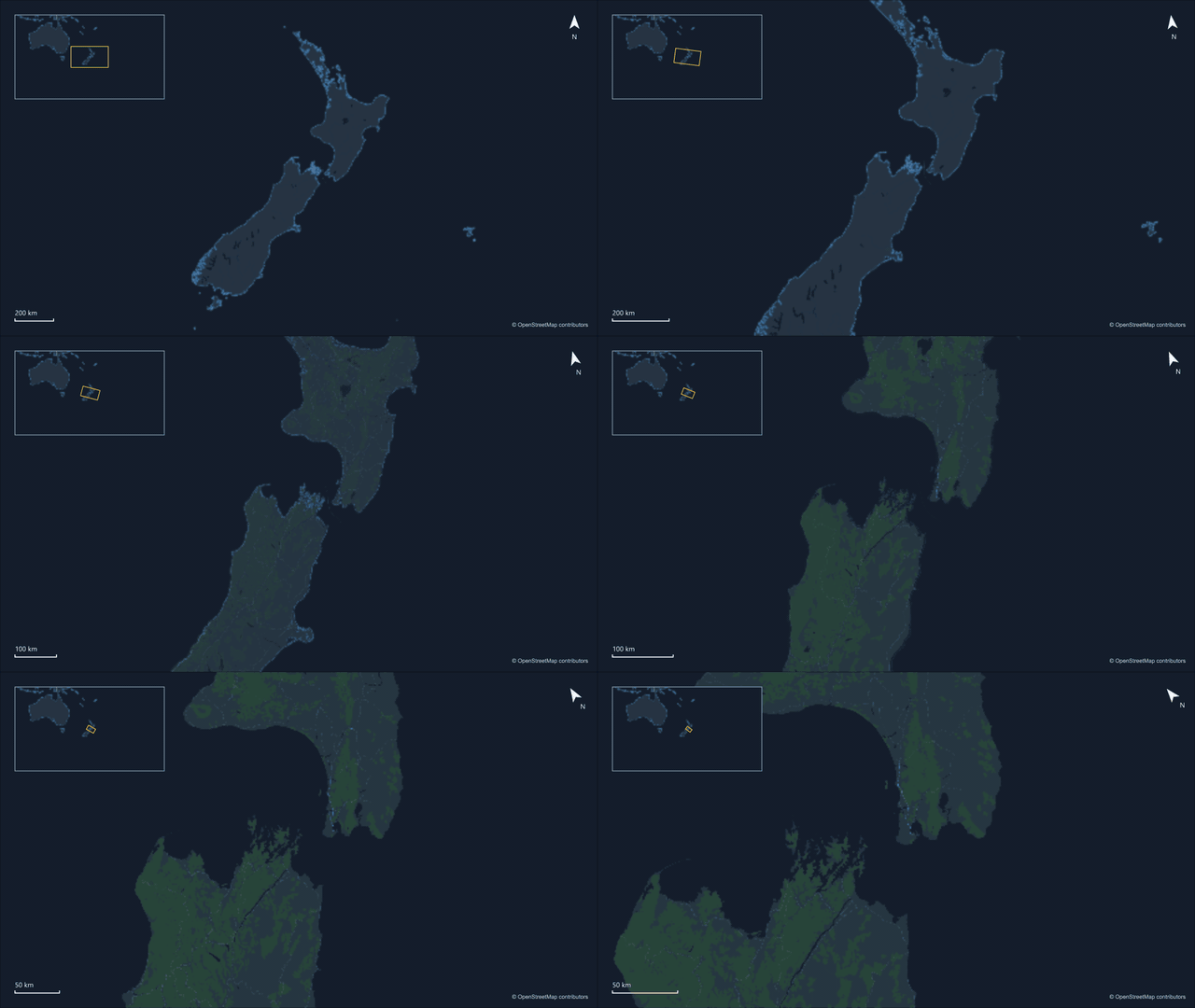
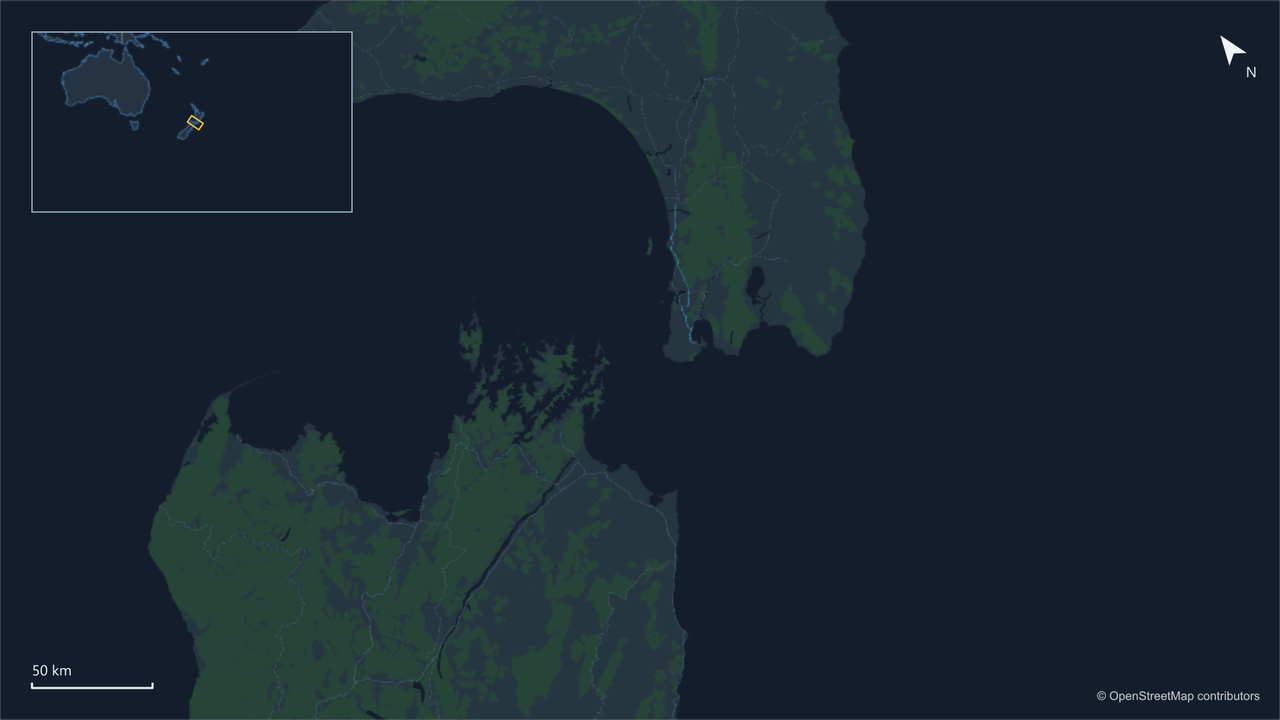
The furniture of a real map, live: an inset map that shows where you are, a scale bar that measures itself on every frame, and a north arrow that turns with the map. All three are plain After Effects layers you can move, recolour and animate.
Where they are#
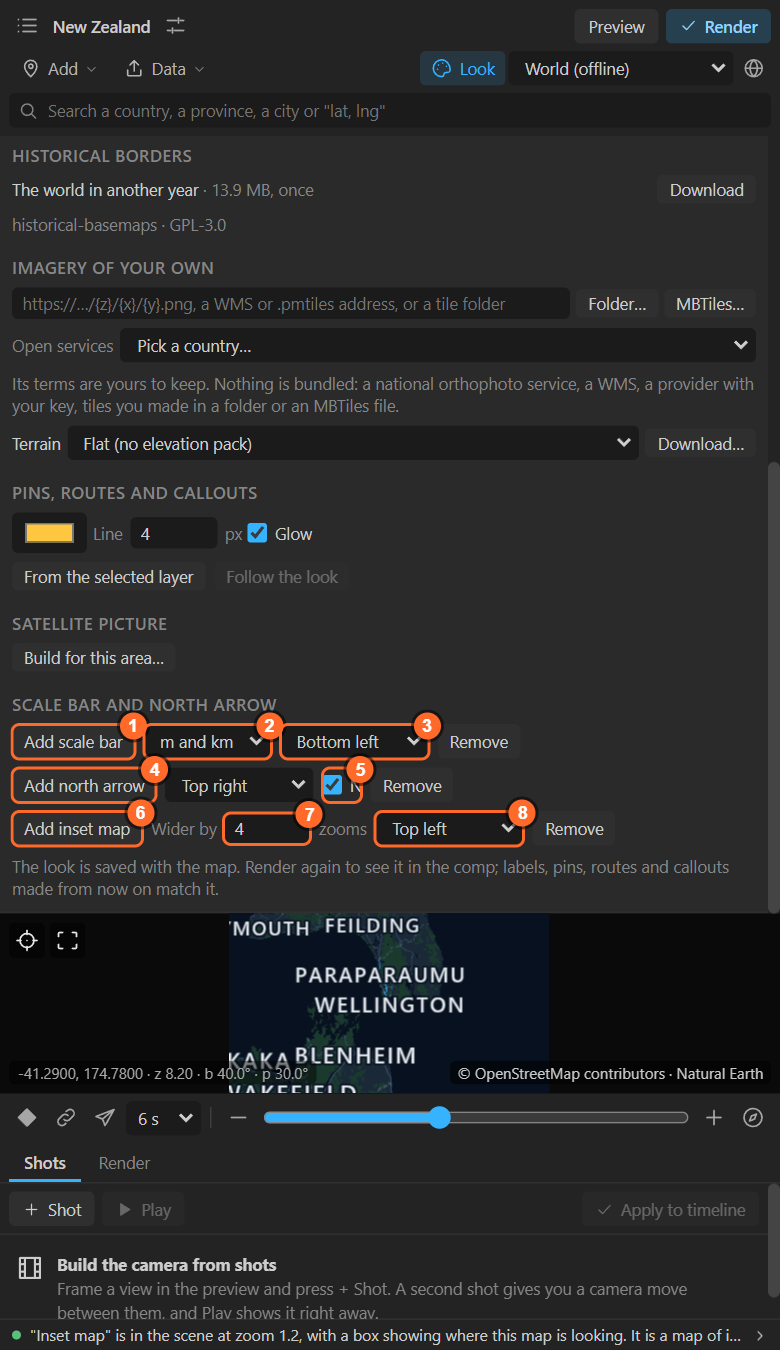
At the bottom of the Look sheet:
Scale bar#
| Control | What it does |
|---|---|
| 1. Add scale bar | Puts the bar in the scene |
| 2. m and km / ft and mi | Metric or imperial |
| 3. Corner | Which corner of the frame it sits in |
| Remove | Takes it off |
The bar measures itself from the map on every frame: it always shows a round distance (1, 2, 5, 10, 20, 50 …) and changes its length and its number as the camera zooms. It stays right through a flight, on the globe, and even if you scale the map layer.
North arrow#
| Control | What it does |
|---|---|
| 4. Add north arrow | Puts the arrow in the scene |
| Corner | Where it sits |
| 5. N | An upright letter N under the arrow, staying upright while the arrow turns |
| Remove | Takes it off |
On a flat map it turns with the bearing. On the globe it points to the pole, which is not always "up" even with a bearing of 0.
Inset map#
| Control | What it does |
|---|---|
| 6. Add inset map | A small locator map in a corner, with a frame and a box on it showing where this map is looking |
| 7. Wider by | How many zoom levels wider than this map the inset looks: 1 to 12 (default 4) |
| 8. Corner | Where it sits |
| Remove | Takes the inset, its frame and its box off |
The box moves and turns with the main map on every frame. The inset is a map of its own: it appears in the Maps list, and you select it there to give it its own look, names and render. Render it once, like any map; it does not need its own camera, it follows the main one.
For a split screen or an overview of your own design instead, use Follow the camera of (chapter 5).
Make them yours#
All three are ordinary layers made by the panel (and tagged LML:):
- Move them anywhere, scale them, change their colours and fonts.
- Fade them in with opacity keys.
- Remove in the sheet takes them off; adding again replaces them.
Related#
- 5. Map settings: following another map
- 31. Legend and chart: the other things that sit in a corner.
