13. Attaching your own layers#
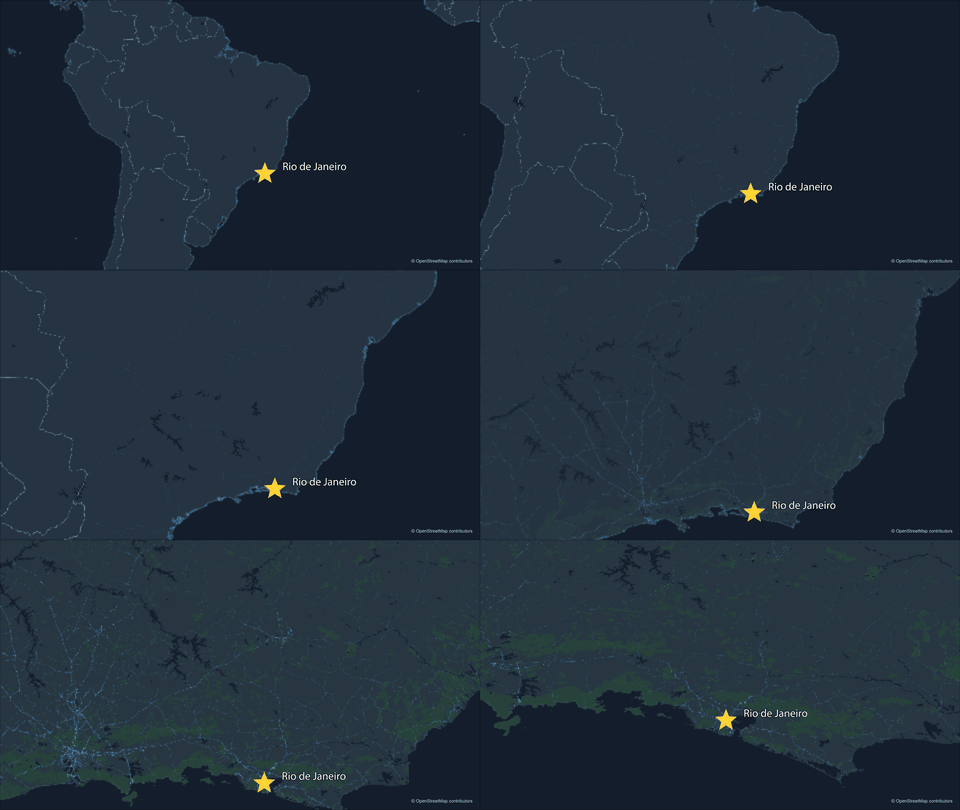
Attach puts your own layers on a place: an icon, a photo, a logo, a precomp, a text layer. They get the same controls a pin has and stay on their place while the camera moves. Everything else about the layer stays yours.
Attach#
-
Select a map in the panel.
-
In After Effects, select your layers in the map's scene comp. One or many.
-
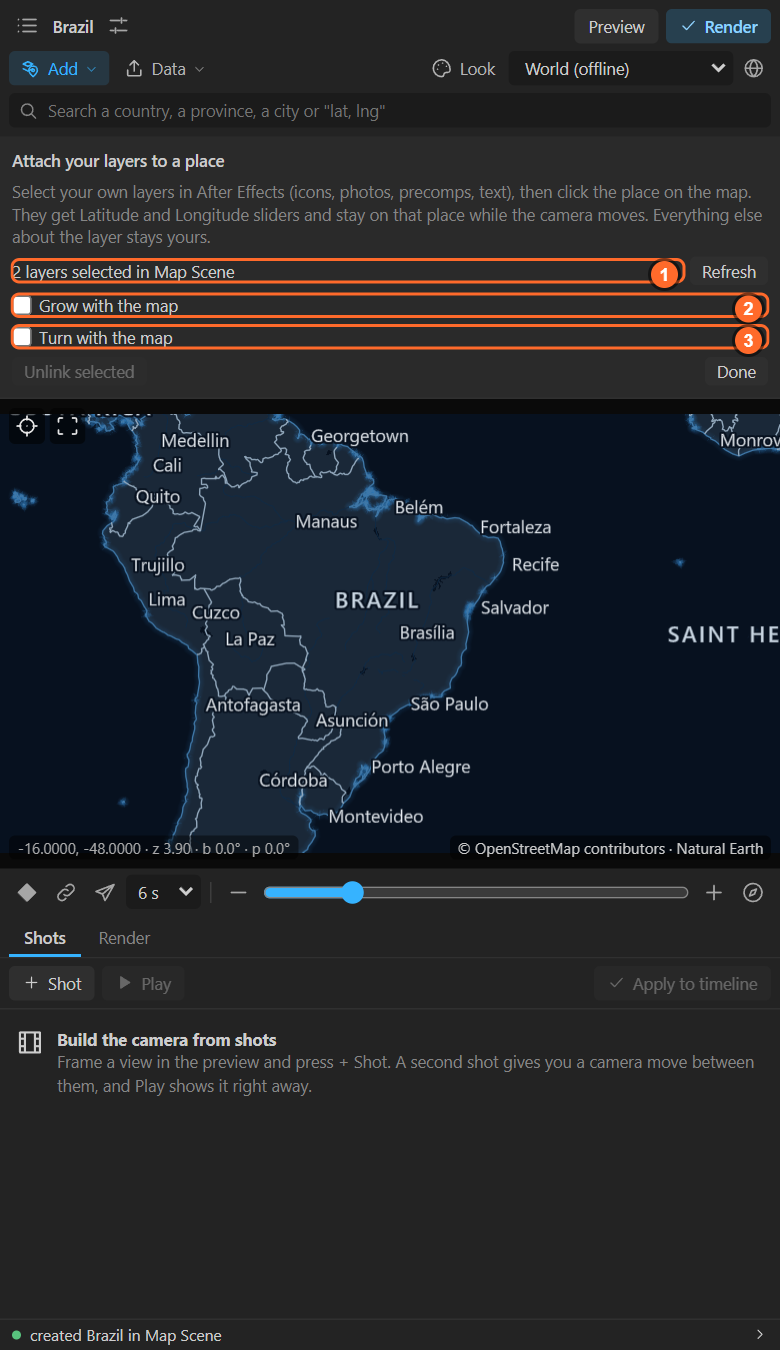
Click Add > Attach your layers. The sheet says how many usable layers are selected; press Refresh if you changed the selection after opening it.
-
Choose how they follow the map:
| Switch | Off | On |
|---|---|---|
| Grow with the map | The layer keeps its size on screen | Its size is multiplied by the map's zoom, so it grows as the camera comes closer, like something painted on the ground |
| Turn with the map | The layer stays upright | It turns with the map's bearing, keeping its direction on the ground |
- Click the place on the preview.
All the selected layers go to that place. The anchor point of each layer is what sits on the place, so set the anchor point first: the bottom tip of a map-pin icon, the centre of a logo. In the example, the label's anchor is moved to its left so the text sits beside the star.
What it adds to your layer#
| Effect | What it does |
|---|---|
| Map | The map it follows |
| Latitude, Longitude | The place. Keyframe them to move the layer across the map |
| Elevation (m) | The ground height, with an elevation pack |
| Scale with Map, Rotate with Map | The two switches above, changeable later |
| Reference Zoom | The zoom at which the layer has its own size (when it scales with the map) |
And expressions on Position, Scale, Rotation and Opacity, which multiply your own values: keyframe Scale from 0 to 100 % to pop it on, or Opacity to fade it, and it still works.
The panel never touches anything else: your effects, masks, your own comment text are kept. A property you already drive with an expression of your own is left alone.
Unlink#
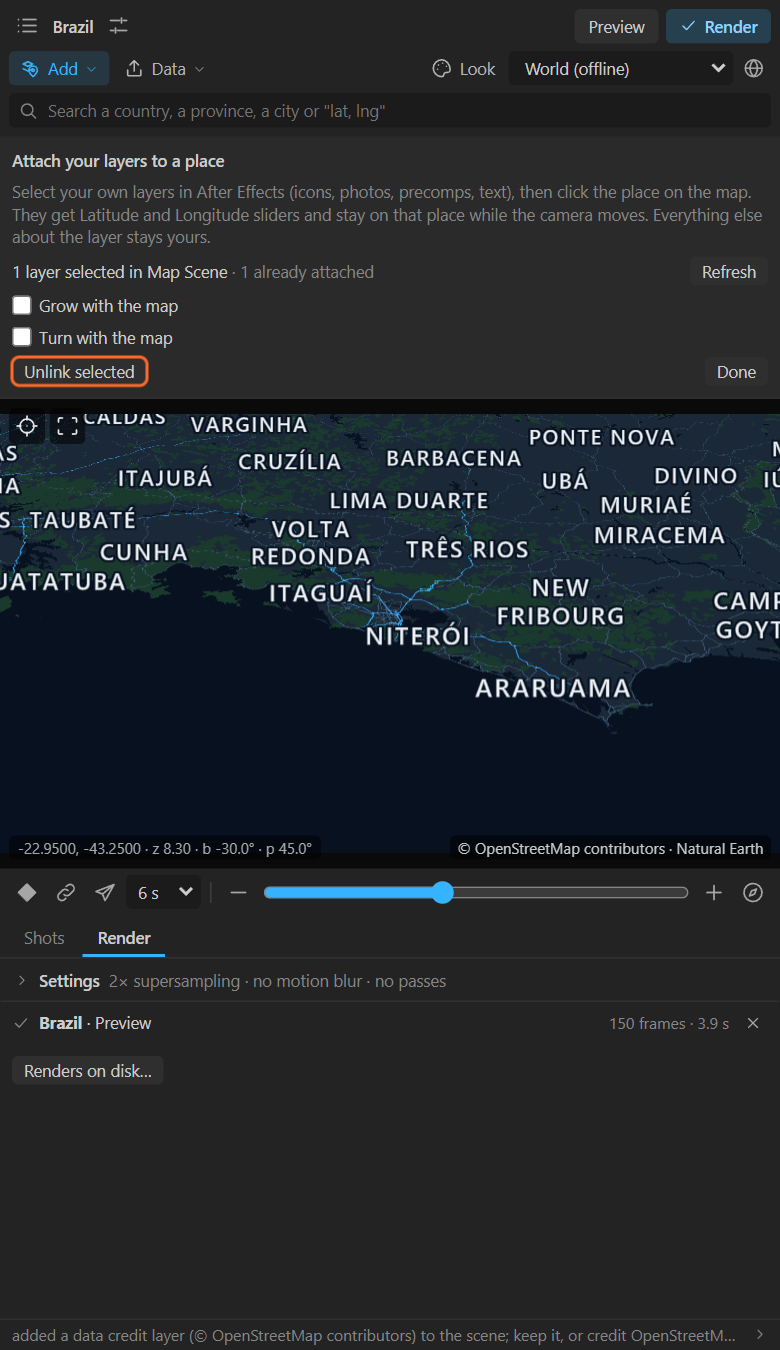
Select attached layers in After Effects, open the Attach sheet and press Unlink selected. The controls and expressions are removed and the layer stays where it is, as an ordinary layer again.
Attach or pin?#
| Pin | Attach | |
|---|---|---|
| The layer | Made by the panel (a dot) | Your own layer |
| Named after the place | Yes | Keeps its name |
| Best for | Quick markers | Branded icons, photos, precomps, anything designed |
To put a copy of one layer on every place of a table (a flag per country, an icon per city), use Copy selected layer onto places in the Numbers sheet (chapter 30).
Tips and pitfalls#
- "Nothing usable selected": select the layers in the map's scene comp, not inside the map comp, and not layers the panel made.
- The layer jumps off the place: the anchor point is not where you think. Move the anchor point, not the position.
- A 3D layer of your own: attach places the layer on screen; a 3D layer keeps its own depth (Z) but is not laid on the ground. For a layer lying on the ground, parent it to a 3D pin (chapter 10).
 আমি