7. Moving the preview#
The preview is your camera. Every view you frame in it can become a keyframe, a shot, the start of a new map, or the area for a download. This chapter is about steering it.
Mouse#
| Do | To |
|---|---|
| Drag | Move the map |
| Scroll | Zoom in and out, around the pointer |
| Right-drag | Sideways: turn (bearing). Up and down: tilt (pitch) |
| Alt+click | Drop a pin (chapter 10) |
| Alt+Shift+click | Drop a 3D pin |
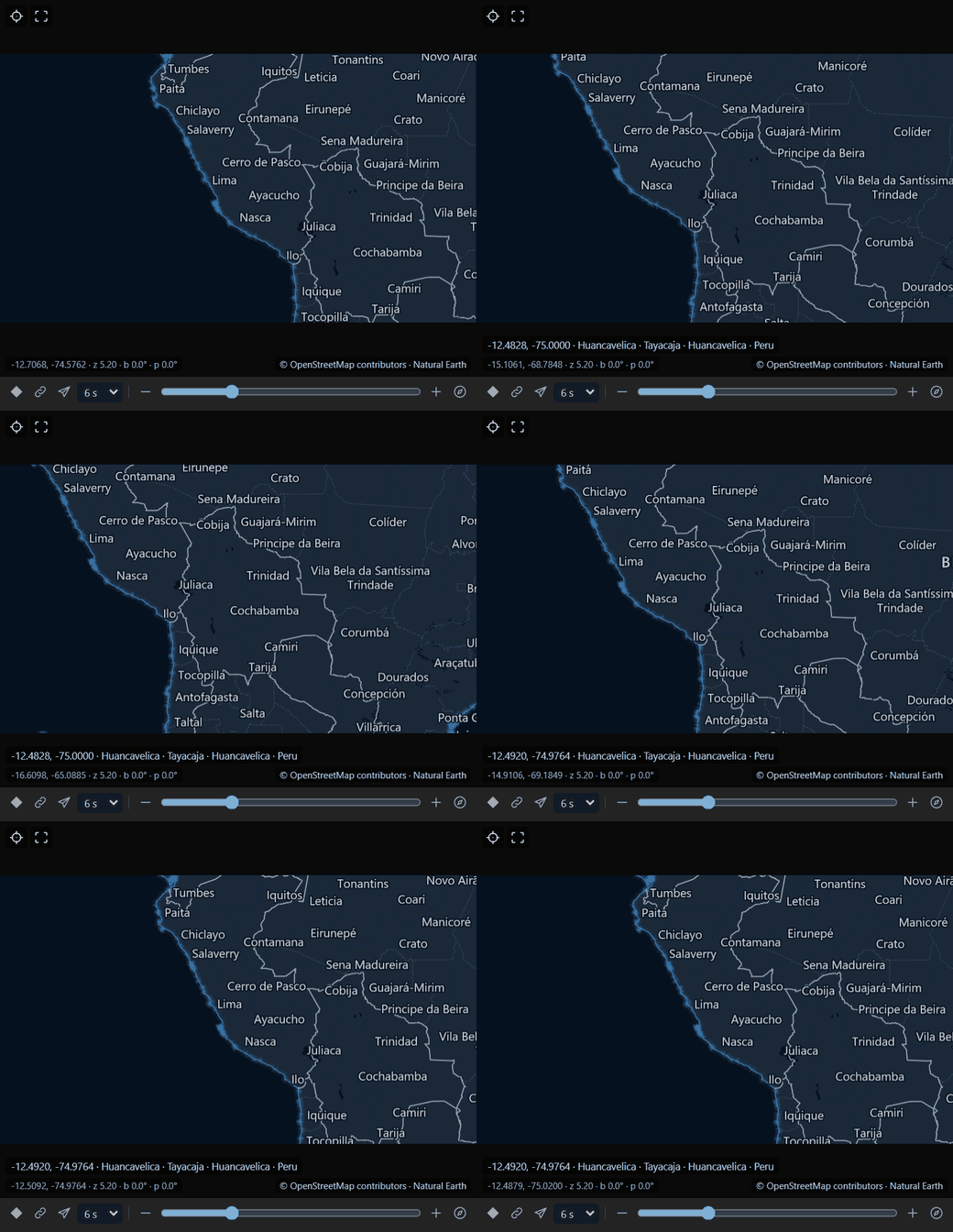
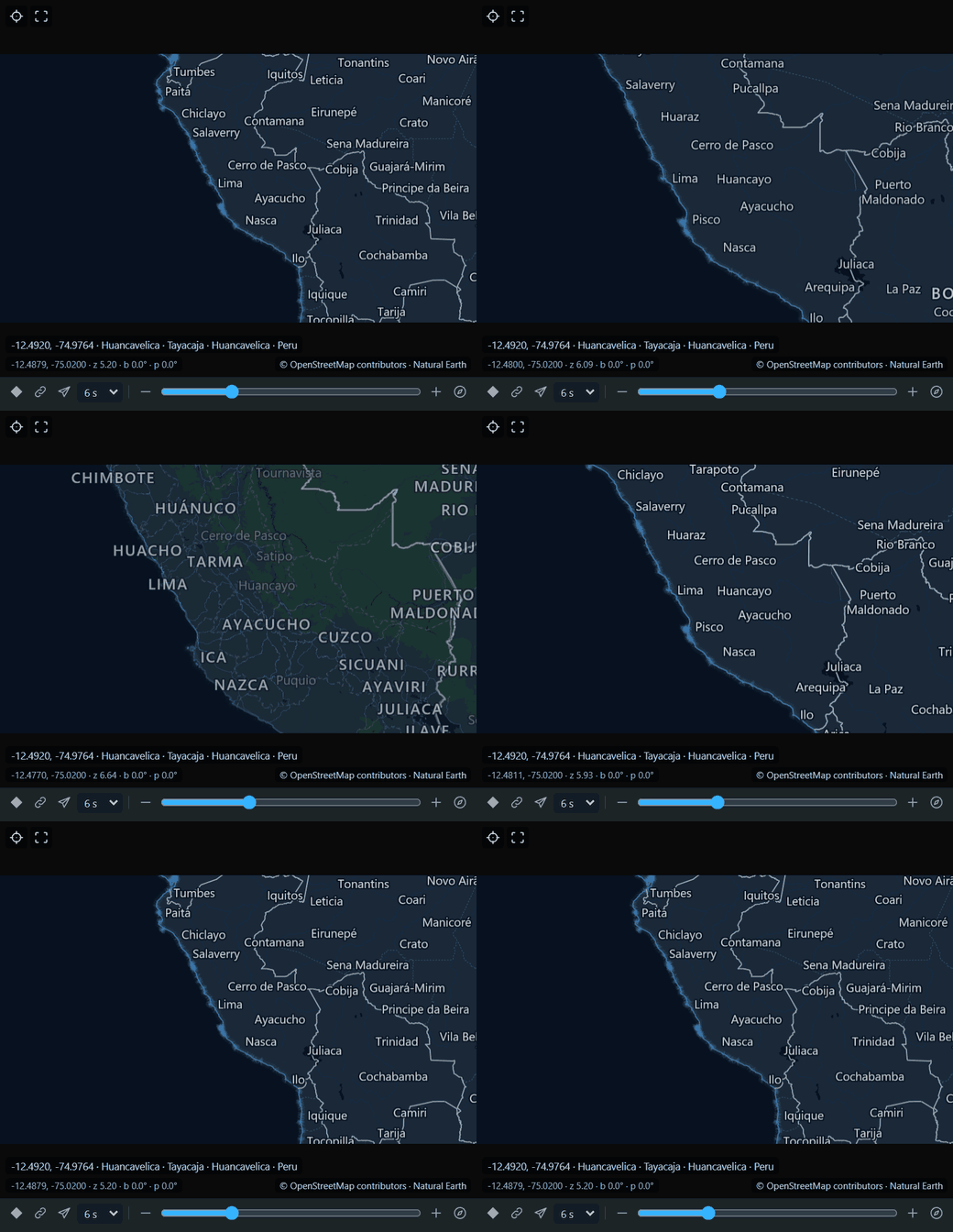
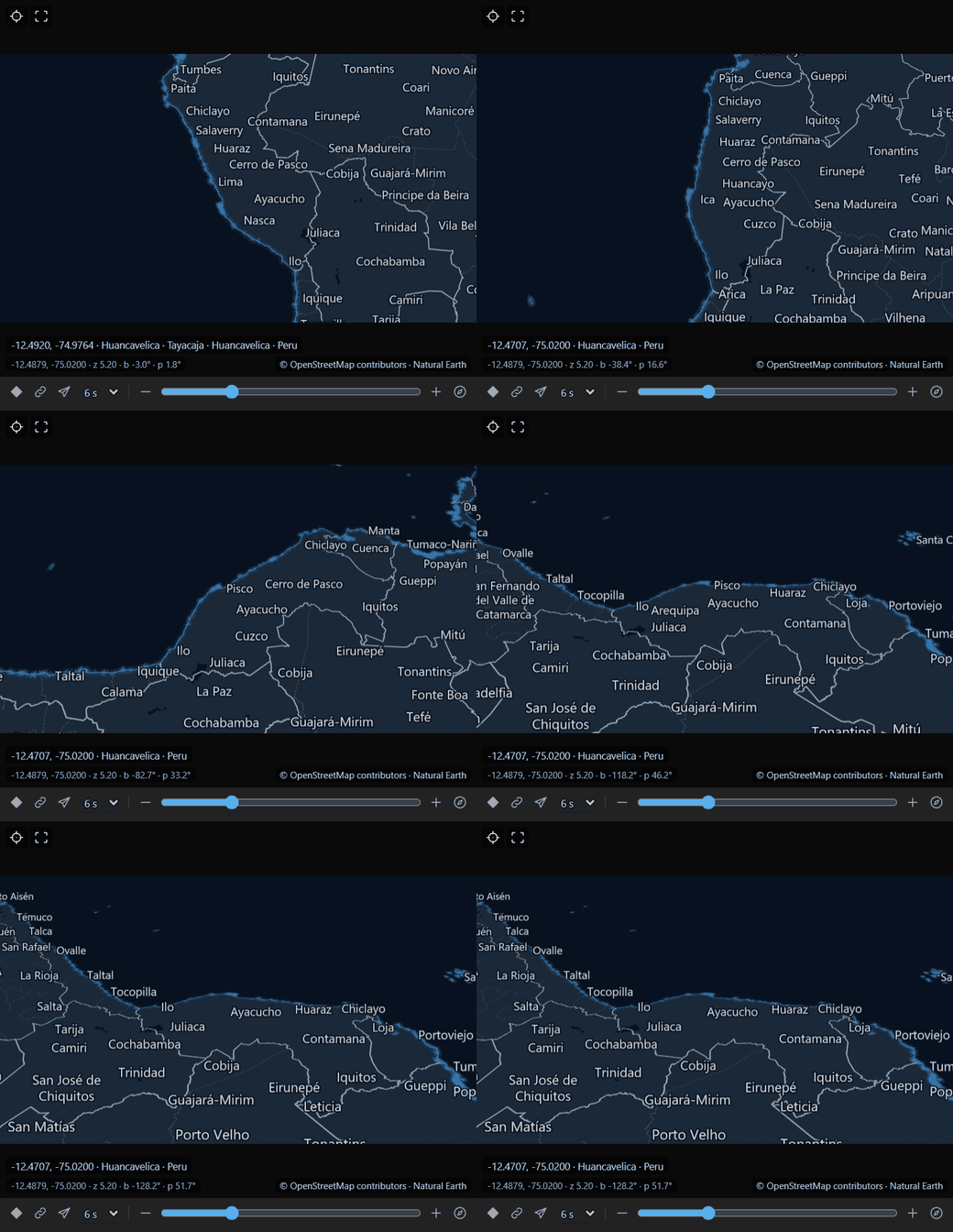
Tilt goes up to 85°. On a tilted map the horizon shows: with Sky on (Look, chapter 23), the look's sky fills it; off, it stays transparent for a sky of your own.
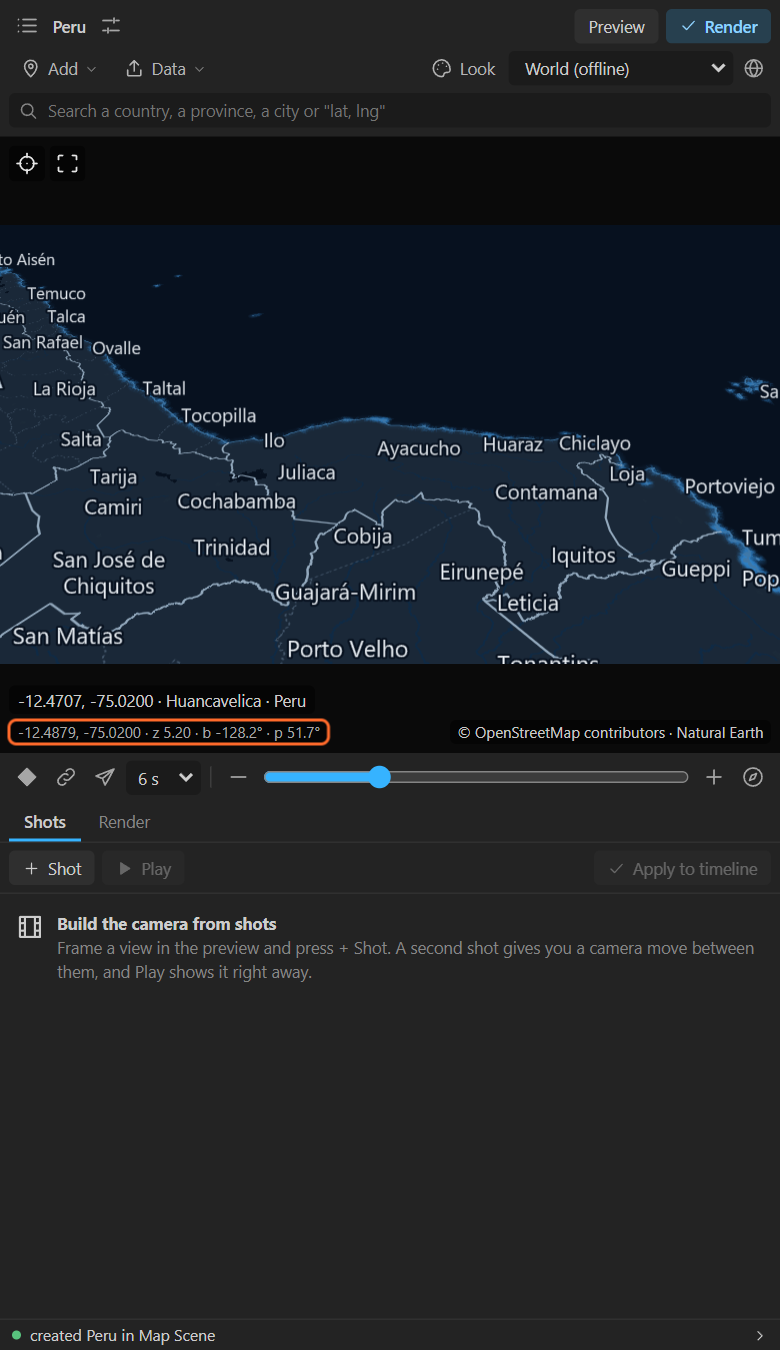
The strip's zoom controls and the compass#

- – and + zoom out and in by half a step; the slider between them sets any zoom from 0 to 20.
- North up (the compass) turns the map back to bearing 0, keeping the tilt.
- Alt+click the compass: north up and straight down (tilt 0).
The readout#
The line at the bottom left of the preview is the frame's camera:
-12.5000, -75.0000 · z 5.20 · b 0.0° · p 0.0°
latitude, longitude, zoom, bearing, pitch: the five controls of the map layer (chapter 3). Use it to type exact values into the map layer's effects, or to note a view you want to come back to.
What is under the pointer#
Move the pointer over the map and a line above the readout says where the pointer is and what is there: its coordinates, the nearest place, its district, its province and its country.
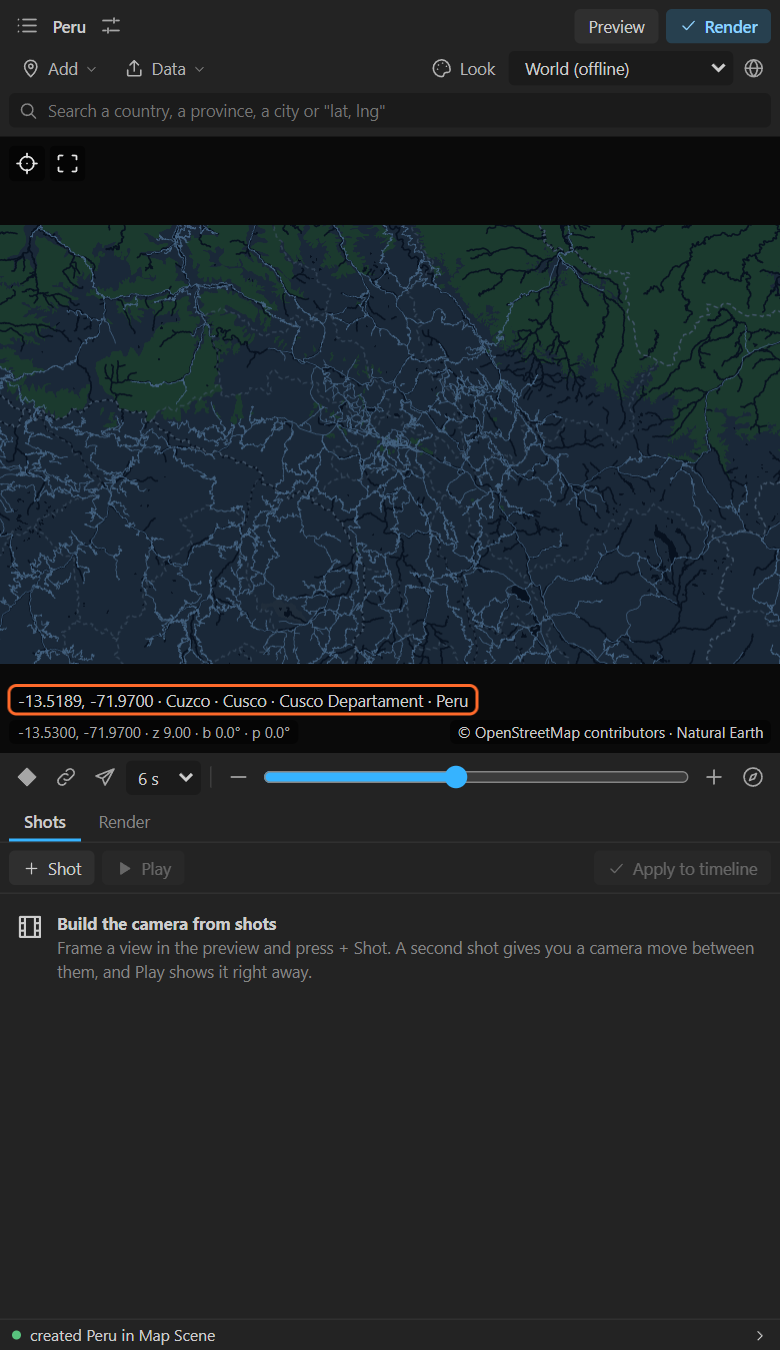
It is a quick way to check a name before you highlight a district or pin a town.
Match AE#
The target at the top left of the preview shows the camera of the current time in After Effects. The preview does not follow the timeline by itself, so press it after you scrub, or after changing keys by hand.
Exact look#
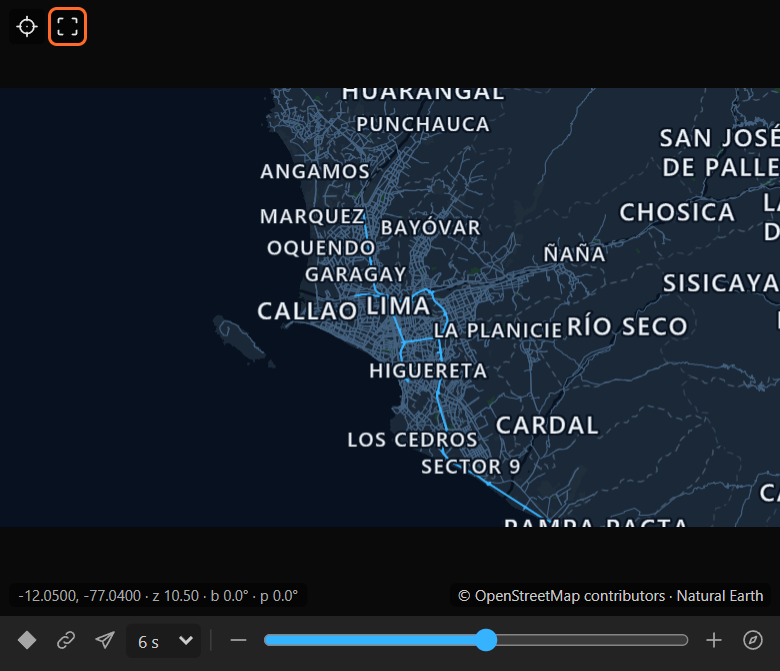
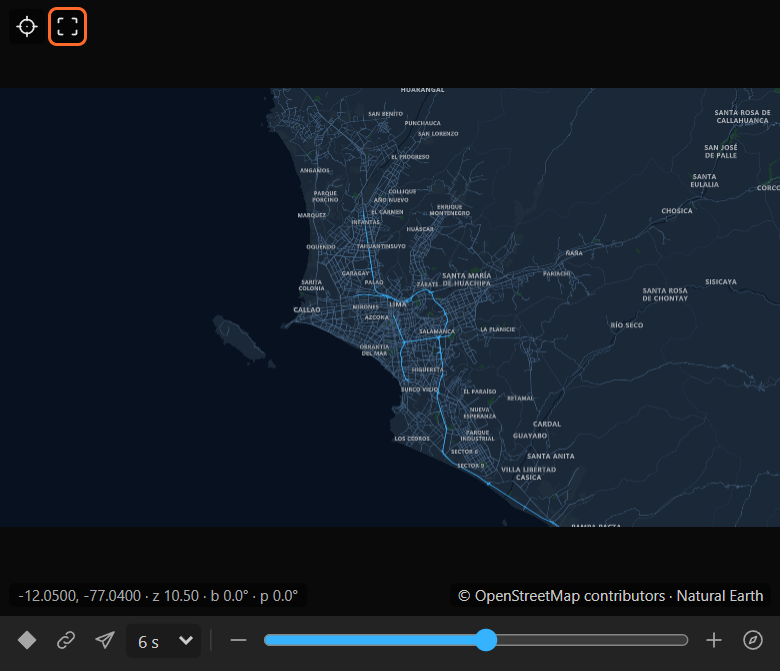
The square next to it switches Exact look.
- Off (default): names and lines are drawn larger than they will render, so you can read them in a small panel.
- On: names and lines at the size they render, relative to the comp. Use it to judge how busy the final frame is.
The preview's size#
The preview always has the shape of the comp (16:9, 9:16, square). It is the frame scaled down to the panel's width; make the panel wider for a larger preview. The map is drawn at the comp's own size behind it, so what you see is what renders.
Tips#
- The preview moved by itself. Selecting a shot, applying the shot list or Match AE all move it.
- I want the preview to follow the timeline. Use Match AE after scrubbing. Or turn Live link on (chapter 8) to work the other way: the preview moves the map.
- Zooming is jumpy with a mouse wheel. Use the slider in the strip for fine steps.
Related#
- 8. The quick camera
- 6. Search: jump the preview to a place.
 আমি