11. Remove#
Remove takes a rig off its text layer: the cursor and guide layers go, and so do the rig's controls, expression and animator. The text layer stays, showing all its text.
Where to find it#
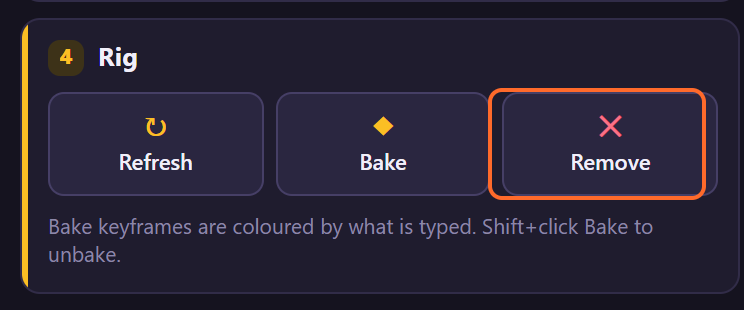
Card 4 · Rig, the red button on the right:
Step by step#
-
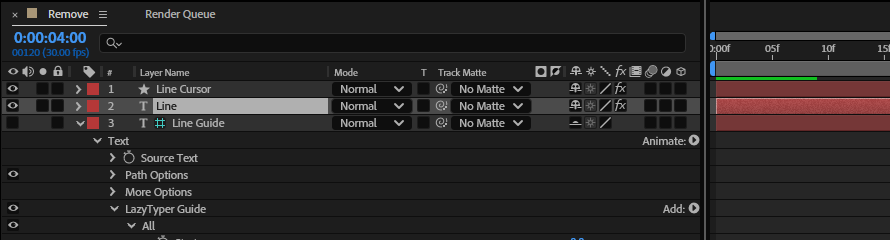
Select the rigged text layers (or their cursors or guides).
-
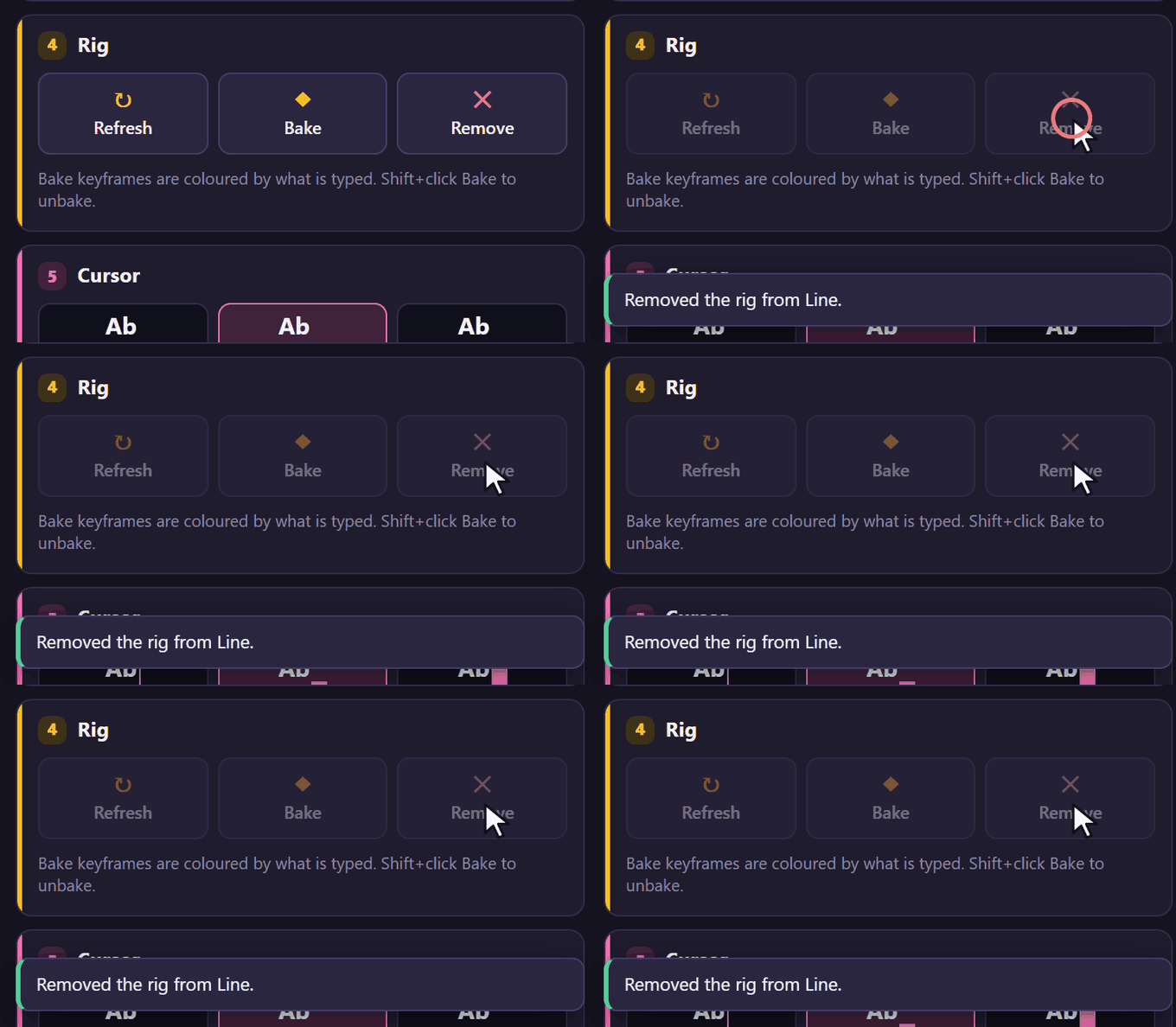
Click Remove. The toast says Removed the rig from Line.
-
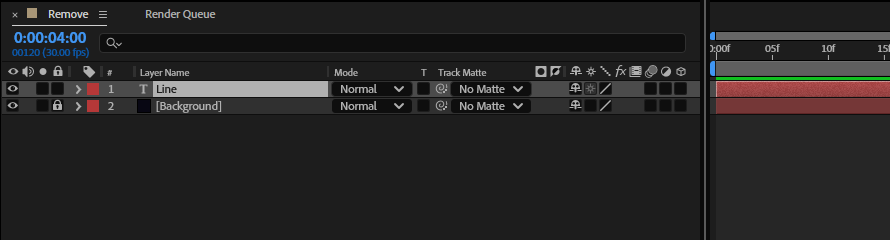
Only the text layer is left:
What goes, what stays#
| Goes | Stays |
|---|---|
| the cursor layer (LazyTyper cursor) | the text layer and its text, style and transform |
| the guide layer (LazyTyper guide) | Source Text keyframes |
| the Source Text expression, if it is LazyTyper's | an expression of your own on Source Text |
| the LazyTyper text animator | your own animators |
| the 25 typing controls, and their keyframes | layer markers (Pause markers too) |
One undo step, LazyTyper: Remove Rig: Edit › Undo brings the whole rig back.
Tips and pitfalls#
- A baked rig is removed the same way; its keyframes go with Characters Shown.
- To start over with other settings, Remove and Create again: a layer that already has a rig is skipped by Create.
- Pause markers stay on the layer; delete them by hand if you don't need them.
- Deleting the cursor layer by hand leaves the rig typing without a cursor: Add cursor gives it a new one (chapter 12).
Related#
- 4. Creating a rig
- 12. Cursor presets: Add cursor.
