6. Start typing and Stop typing#
Stop typing makes the typing wait at the time indicator; Start typing sets it going again. Together they place typing on the timeline: to a beat, to a voice, around a cut.

Rendered by After Effects: typing stops at 1.6 s and starts again at 3 s.
Where to find it#
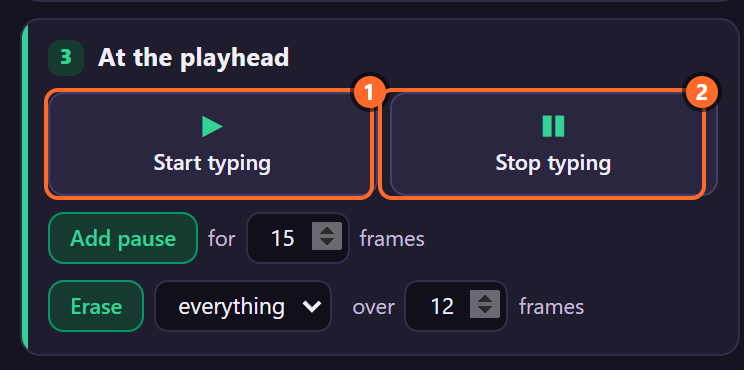
Card 3 · At the playhead, the two big buttons:
Step by step#
-
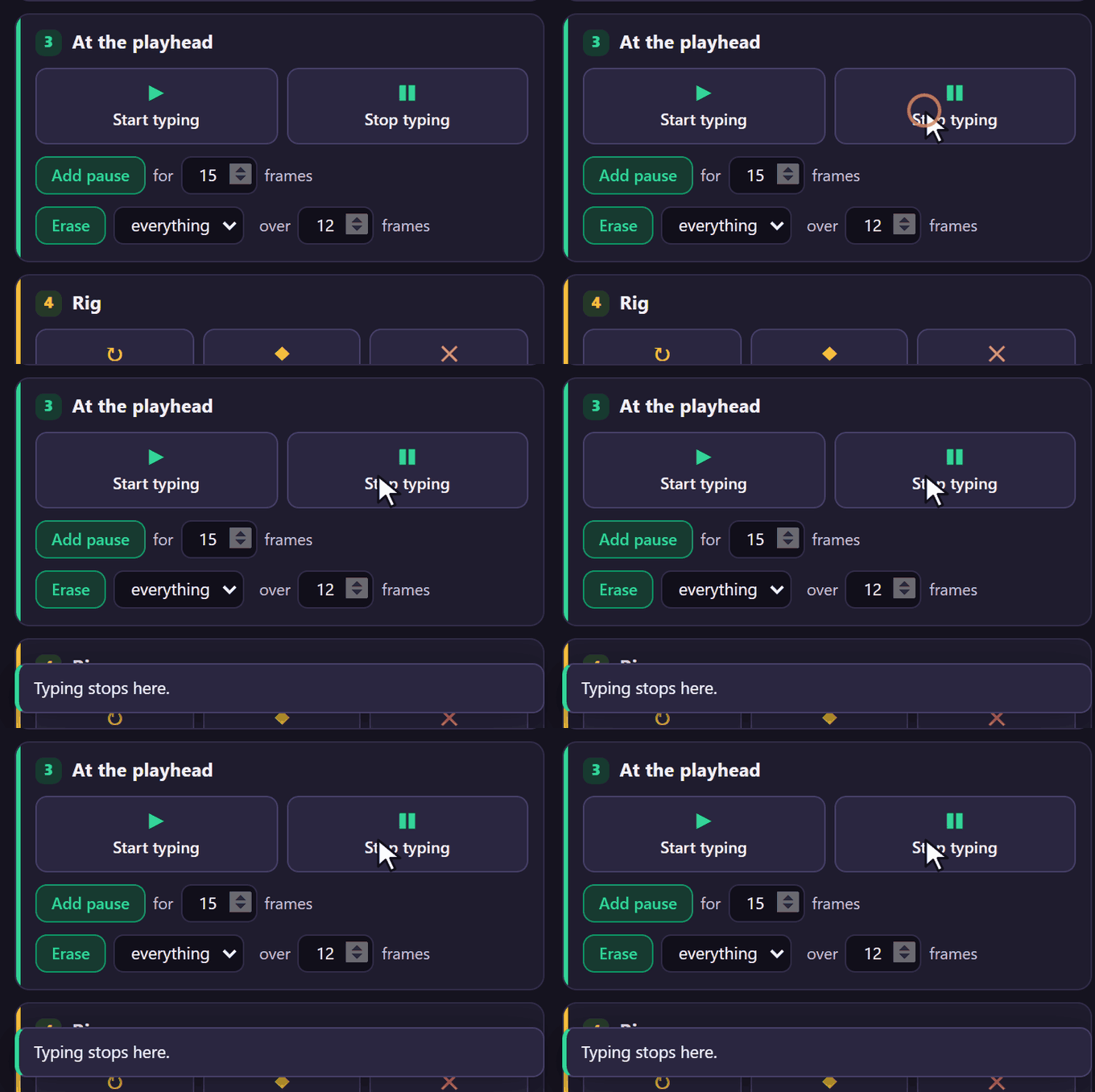
Select the rigged text layer and put the time indicator where typing should stop (1.6 s here, after "Typing stops").
-
Click Stop typing. The toast says Typing stops here.
-
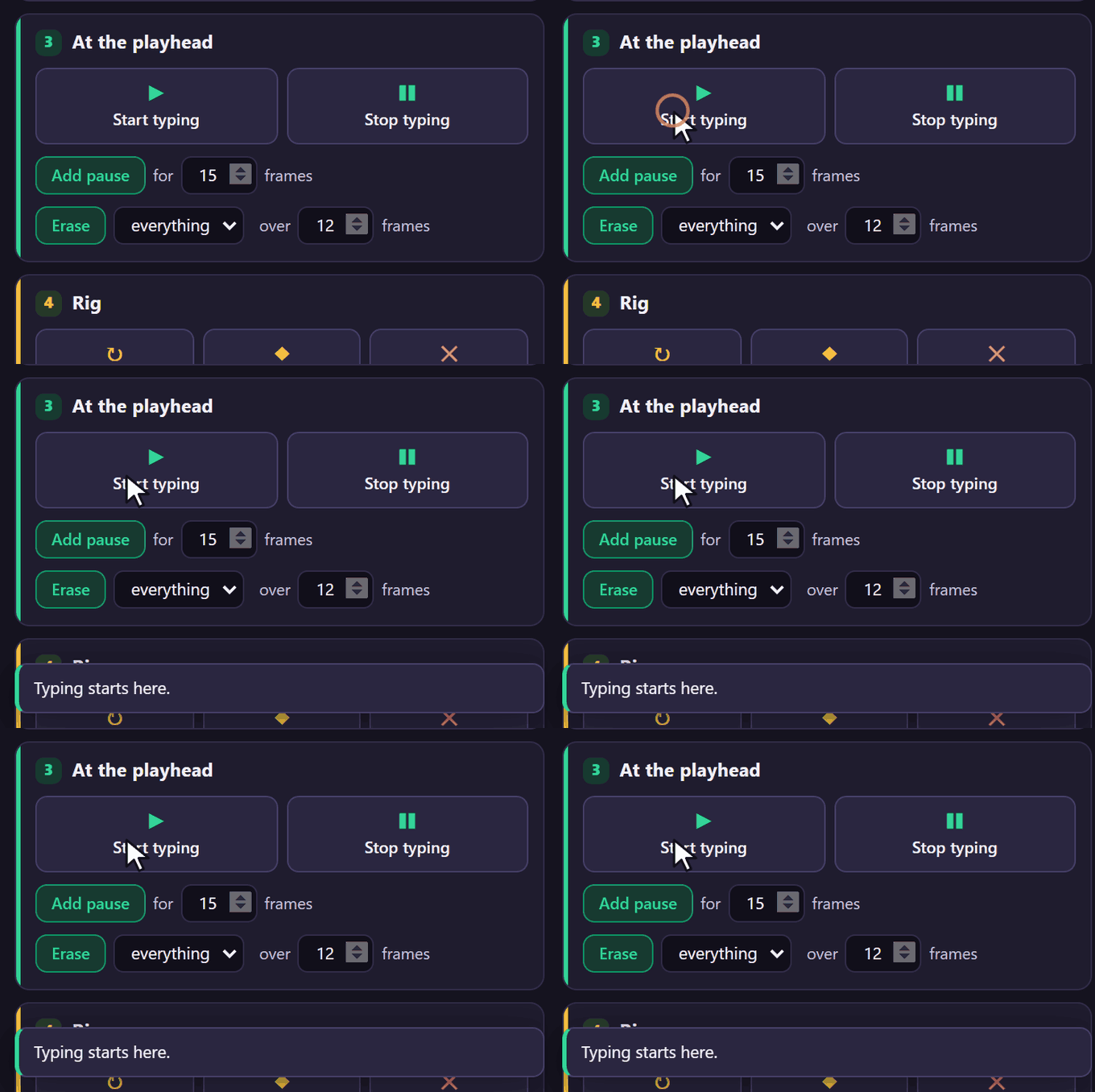
Move the time indicator to where typing should go on (3 s) and click Start typing: Typing starts here.
Both buttons key the Typing checkbox, which you can see with U:

What the buttons key#
- A keyframe on Typing at the time indicator: off for Stop, on for Start. A checkbox holds its value until the next keyframe.
- The first time Typing gets a keyframe, also a keyframe at the layer's start with the value it had, so the typing before stays as it was (the key at 0 s above).
- On every selected rig, as one undo step.
When typing starts again, the next character appears at once, the same frame: a key that was waiting when typing stopped does not finish its wait. Typing then goes on at the rig's speed from there.
Tips and pitfalls#
- Start later than the layer: Stop typing at the layer's start, then Start typing where it should begin. Or simply move the layer's in point: typing never runs before the layer starts.
- A short break inside a line is easier as a Pause marker (chapter 7): its length is a drag.
- Stop is not Erase: the text stays as it is. To take characters back, use Erase (chapter 8).
- Several rigs: select them all and click once; each gets its own keyframes.
- Bake (chapter 10) turns the result into keyframes; after that, Typing keyframes change nothing until you unbake.
