The LazyLord manual#
Everything the panel and the plugin can do, control by control. The README is the short version; this is the long one.
What travels on each route has a reference of its own, What transfers, and when something goes wrong there is Troubleshooting.
This describes LazyLord 1.1.11.
Contents#
- What LazyLord is
- What you need
- Installing
- Your first transfer
- The Adobe panel
- The Figma plugin
- What happens during a transfer
- Sending into Figma
- Update in place
- Conflicts
- Only what changed
- Live
- Keyframes
- Images and where they are kept
- Guides and swatches
- Presets, history and the log
- After Effects extras
- Updates and privacy
- Where LazyLord keeps things
- Removing it
What LazyLord is#
LazyLord moves artwork between Figma, Photoshop, Illustrator and After Effects as real, editable layers — paths stay paths, text stays text, images stay images. Every app both sends and receives, so all twelve routes work.
It comes in two halves:
| The Adobe panel | One panel that runs in Photoshop, Illustrator and After Effects. It reads the selection, rebuilds what arrives, and shows the options, the fallbacks, the history and the log. |
| The Figma plugin | The same interface inside Figma, plus an Incoming card: nothing another app sends reaches a Figma canvas until you place it. |
Between them sits the bridge — a small WebSocket relay on
ws://127.0.0.1:7878. You never start it: the first LazyLord panel you open
runs it inside itself, and every other panel and the Figma plugin connect to
it. If the app hosting it quits, the next panel to reconnect takes the port
over. Nothing listens on the network, and nothing leaves your machine.
What you need#
| Operating system | Windows 10 or 11, or macOS |
| Adobe apps | Photoshop, Illustrator or After Effects, 2021 or newer (CEP 11). Any one of them is enough |
| Figma | Optional. The desktop app, or Chrome, Edge or Firefox once the plugin comes from Figma Community — not Safari, which does not let a web page reach your own machine |
| Anything else | No. No Node.js, no extension manager, no account, no subscription |
A few features ask for a newer host, and say so when they cannot run:
| Feature | Needs |
|---|---|
| Mixed character styles in After Effects text | After Effects 24.3 (TextDocument.characterRange) |
| Kerning method (metrics / optical / none) in AE | After Effects 24.0 |
| Kerned letter pairs in AE | After Effects 24.3 |
| Track mattes set on the layer itself | After Effects 23 (older versions use the layer above) |
| Guides added to a comp | After Effects 16.1 |
| Component copies sharing one precomp with Essential Properties | After Effects 2019 or newer |
Installing#
1. The Adobe panel#
-
Download the zip from the releases page.
-
Unzip it — right-click → Extract All on Windows, double-click on macOS. Do not run anything from inside the zip itself; Windows opens a zip like a folder, but the installer needs the files unpacked.
-
Close Photoshop, Illustrator and After Effects.
-
Run
1 - Install LazyLord.bat(macOS:1 - Install LazyLord (macOS).command— if macOS refuses to open it, right-click it and choose Open). -
Start an Adobe app and open the panel:
Photoshop Window → Extensions (legacy) → LazyLord Illustrator Window → Extensions → LazyLord After Effects Window → Extensions → LazyLord
The dot at the top right turns green when the panel is connected. That is the whole install — there is no program to leave running and no console window.
Keep one LazyLord panel open while you work, in whichever Adobe app. It is the bridge the others and Figma connect through.
2. The Figma plugin#
Figma does not let any installer add a plugin, so the last three clicks are
yours. 2 - Add the Figma plugin.bat (macOS: the matching .command)
does everything up to them: it copies the plugin somewhere permanent and puts
the one path you need on the clipboard.
- Open the Figma desktop app — Figma only imports development plugins there. (Installed from Figma Community instead, LazyLord runs in the browser too.)
- Menu → Plugins → Development → Import plugin from manifest…
- In the file window paste the copied path (Ctrl+V, or Cmd+Shift+G then Cmd+V on macOS) and press Enter.
- Run it from Plugins → Development → LazyLord.
Figma asks whether the plugin may talk to ws://localhost:7878. That address
is the LazyLord panel on your own machine, and it is the only address the
plugin ever uses.
Updating#
The panel tells you when a new LazyLord is out: a card at the top says what changed and offers Download. You hear about it at most once a fortnight, however often new versions come out, and always about the newest one. Click the version number beside the logo at any time to check for yourself.
To install an update: download the new zip, close the Adobe apps and run
1 - Install LazyLord again — it replaces the old panel. If you added the
Figma plugin from the download, run 2 - Add the Figma plugin again too.
Your first transfer#
From Figma into an Adobe app#
- Open a LazyLord panel in Photoshop, Illustrator or After Effects and wait for its dot to turn green. Nothing else has to be running.
- In Figma, select some layers and run Plugins → LazyLord.
- Pick a target — one app, or All apps — and press Send.
- The layers appear natively in the Adobe app — by default in a new document or comp sized to what you sent. Destination decides that; choose Open document to build into the one already open.
If everything you selected sits inside one top-level frame, it arrives where it sits in that frame, and the new document or comp is that frame's size.
From an Adobe app#
- Select artwork (Illustrator), layers (Photoshop) or comp layers (After Effects).
- In the panel, pick the app to send to. The button names it: Send to After Effects, Send to Figma, and so on.
- Press it.
Sending to Figma is the one route that asks first: the plugin shows the transfer under Incoming, and it reaches the canvas only when you press Place on canvas. Keep the plugin open in Figma while you send.
Earlier versions labelled these Push and Pull, following Overlord. Those words name a direction through a workflow rather than what the button does — After Effects' button said "Pull" while sending artwork out — and they stop meaning anything once every app talks to every other one. The button now simply names its destination.
The Adobe panel#
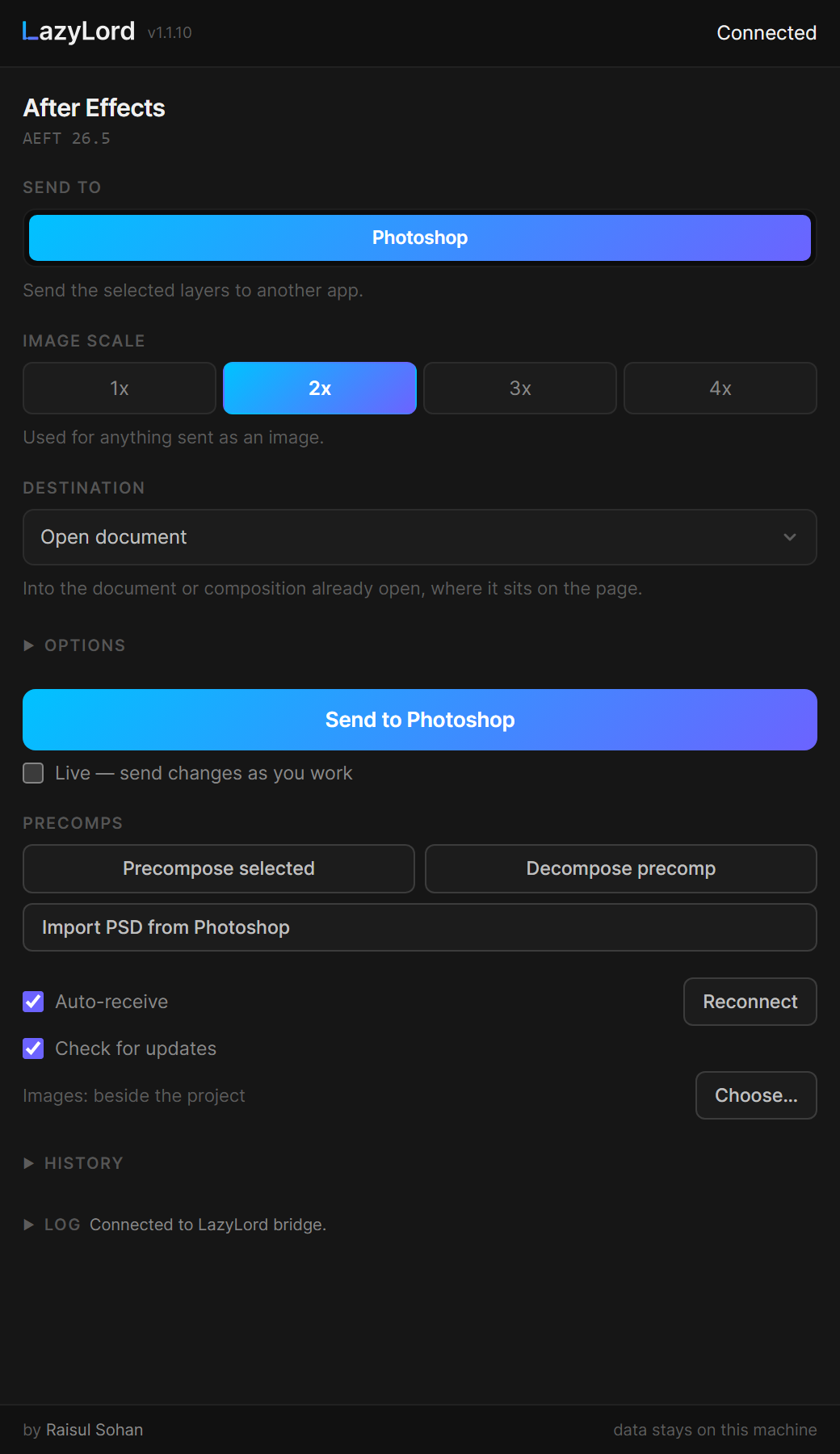
In After Effects, with Photoshop open too. In Photoshop the same panel reads Send to After Effects, and the Precomps row is not there.
The panel is the same in all three apps; only the parts that do not apply are hidden. Every choice is remembered per app, so Illustrator and After Effects can each keep their own.
The header#
The version, beside the logo (v1.1.11) |
Click it to check for a newer LazyLord. While one is waiting it reads v1.1.11 · update, and clicking brings its card back. |
| The dot, at the right | The bridge. Offline before it connects, Connecting…, Connected (green), Bridge offline when it drops. It reconnects by itself every 2.5 seconds. |
Update#
A card that appears only when a newer LazyLord is out. It names the version, lists up to four points from its release notes, and has Download (opens the release page in your browser) and Later. Either one settles the notice; see Updates and privacy.
The host row#
Which app the panel is running in, and its version — the first thing a bug report needs.
Send to#
One chip per connected app; apps that are not connected are not listed, and with none you see No app connected. The chip you last chose wins whenever that app is connected; otherwise the panel falls back to a sensible default (Illustrator and Photoshop offer After Effects, After Effects offers Illustrator).
Image scale#
1x, 2x, 3x, 4x — the resolution of anything that has to travel as a picture: an image you placed, a rasterised fallback, a layer sent as an image. The default is 2x. It does not affect vectors or text.
Big pictures are held down. A layer the size of a large canvas at 2x would be a hundred-megapixel image — Photoshop has to build and save it, the receiving app has to embed it, and a stack of them stalls both apps and the computer. So one exported image is kept under 30 megapixels (12,000 px a side) by lowering its scale, below 1x if it must, and the generated images of one transfer together under 300 megapixels, after which the rest are left out. The layer still sits at its full size on the page; only its resolution drops. Each case is reported in the Fallbacks card with the scale used — Exported at 0.79x rather than 2x — or, when a transfer's budget is used up, with the advice to send fewer layers at once. Your own linked files are never resampled, so they are not counted.
Destination#
Where the receiving app builds, and how the transfer is sized for it:
| Destination | What the receiving app does |
|---|---|
| Open document (default) | Into the document or comp already open, where the artwork sits on the page. A new one is created only when nothing is open. |
| New — source page size | A new document or comp the size of the source artboard, composition or canvas, with everything where it sits on it. |
| New — selection size | A new document or comp the size of the selection, with the artwork at its origin. |
Updating overrides this: there is nothing to update in a document that does not exist yet, so an update always goes into the open document, and the Options section says so.
Options#
A folded section whose summary names whatever differs from the defaults ("Combine, Groups, Update, 3x"), so a closed section still tells you what the next send will do.
| Option | Choice | What the receiving app builds |
|---|---|---|
| Layout | Split (default) | One layer per shape. |
| Combine | After Effects: every eligible shape in one shape layer, one vector group each. What cannot join it stays a layer of its own, and is reported: text, images, shapes whose clipping mask differs from the one most of them share, layers that need a track matte (anything clipped or masked from Photoshop), and gradient-filled shapes when After Effects has fallen back to Gradient Ramps, which colour a whole layer. Illustrator and Photoshop ignore the option. | |
| Hierarchy | Flatten (default) | Groups dissolve into their layers; a group's opacity is multiplied into its layers (reported where they could overlap). |
| Groups | Illustrator groups, Photoshop layer groups, After Effects parent nulls — or nested shape groups when combining. | |
| Precomps | After Effects: each frame becomes a precomp its size, nested frames nesting. A component and all its instances share one precomp; each copy's own text and colours become Essential Properties on its layer. Every other app treats this as Groups. | |
| Existing | Add (default) | Every transfer creates new layers. |
| Update | A layer an earlier transfer built from the same object is edited where it stands, instead of a duplicate being added. See Update in place. | |
| Keyframes | Auto (default) | Shown while updating. A property that is already animated gets a new key at the playhead; a still one is just set. |
| Always | Every property LazyLord updates is keyed at the playhead — how you animate a shape by re-sending it. | |
| On conflict | Overwrite (default) | Shown while updating. A layer that was edited in the receiving app since it was last sent is updated anyway, and reported. |
| Keep my edits | That layer is left as you made it, and reported. | |
| Only what changed | on (default) | Shown while updating. Only the layers whose source changed since the last successful send to that app go out; nothing at all when nothing changed. |
| Layers as frames | Photoshop only, off | The selected layers — or the layers in one selected group, bottom first — become the frames of one image sequence in After Effects, all the same size. Hidden layers count, so a frame animation sends as it is. Other apps place the first frame and say so. |
| Include guides | off | Also send the source page's ruler guides. |
| Include swatches | off | Also send the source's named colours. |
| Preset | — | The Destination, the Image scale and the options above — bar Only what changed and Layers as frames — saved under a name. Type a name and press Save; pick one from the list to apply it; Delete removes the one showing. |
Split + Flatten + Add is what earlier versions produced.
Send, and Live#
The button names its destination and is disabled while a send is under way (Sending…). Under it, Live — send changes as you work keeps one app in step; see Live.
Precomps (After Effects only)#
| Button | What it does |
|---|---|
| Precompose selected | Moves the selected layers into one precomp, keeping their attributes. One undo step. |
| Decompose precomp | Moves a selected precomp's layers into this comp, exactly where they showed, and removes the precomp layer. The precomp itself stays in the project. |
| Import PSD from Photoshop | Imports the document open in Photoshop — its last saved version — as a composition with layer sizes kept. With Photoshop connected, the panel asks it which document is open; without it, a file dialog appears. |
If the Photoshop document has never been saved, the panel says so instead of importing; if it has unsaved changes, it warns that the last saved version is what arrives.
Auto-receive, Reconnect, Check for updates, Images#
| Control | What it does |
|---|---|
| Auto-receive (on) | When off, transfers sent to this app are declined and the sender is told why, rather than left to time out. |
| Reconnect | Drops the bridge connection and opens it again. Useful after the app hosting the bridge has quit. |
| Check for updates (on) | About twice a day, ask GitHub whether a newer LazyLord is out. Nothing about you or your work is sent. Unticking it stops the requests in this app. |
| Images (After Effects only) | Where After Effects keeps the images a transfer brings in. Choose… picks a folder; Default goes back to a LazyLord Assets folder beside the saved project. |
Fallbacks#
After every transfer, everything that could not be rebuilt natively is listed here — the object's name, what happened to it, and which rung of the ladder it landed on:
| Tag | Meaning |
|---|---|
| skipped | It did not arrive at all. |
| rasterized | It arrived as a picture rather than as editable artwork. |
| approximated | It arrived, but not exactly: a spread dropped, a second stroke ignored, a mixed style flattened. |
The card lists the worst first, counts each kind, and covers the whole transfer: what the sending app could not describe and what the receiving app could not rebuild.
History#
The last 25 transfers this app sent or received: when, which way, the source document's name, how many layers, and any fallbacks or failure. Kept per app, and Clear history empties it. Live changes are deliberately left out — they would push every real transfer off the list — but they are still logged.
Log#
Closed by default, with its newest line beside the summary. A warning or an error opens it on its own. It keeps the last 500 lines of the session and is the first thing to copy when reporting a problem.
The Figma plugin#
The same interface, in Figma's own light or dark theme.
Incoming#
Artwork another app has sent waits here — which app, how many layers, whether it adds or updates:
| Button | What it does |
|---|---|
| Place on canvas | Builds it on the current page. |
| Update on canvas | Shown when the sender asked to update what it placed before, and for Live changes. |
| Decline / Discard | Nothing is built. Decline tells the sender nothing was placed; Discard (for Live) drops what is waiting — new changes will wait here again. |
When several transfers are waiting, the card shows the first and says 1 of 3. Live changes from one app and file share a single card that always holds the newest state, and it says how many changes it has taken in.
Send to#
All apps, or one app. All four are always shown, whether or not that app is running: the line underneath says who is listening, and picking an app that is not there leaves the Send button reading Open the LazyLord panel in Adobe.
Image scale, and sending a layer as a picture#
1x–4x, as in the panel. Under it:
Send the selected layers as images. Tick it and each selected layer — a busy illustration, a group with effects the Adobe apps do not have — goes as one image, exactly as it looks, instead of as editable layers. The choice is saved in the Figma file (as plugin data on the node), so it holds for every later send, by you or by anyone else who opens the file. The box shows half-checked when only some of the selection is marked; untick it to send those layers as layers again.
Destination#
| Destination | What the receiving app does |
|---|---|
| New document — frame or object size (default) | A new Photoshop / Illustrator document or After Effects comp. A whole frame or section gets one its size and name; objects get one their own size and name. |
| New document — top-level frame size | A new document the size of the top-level frame the selection sits in, with everything where it sits in that frame. |
| Open document | Into the document or comp already open, where it sits in its frame (a new one only when nothing is open). |
With either New document choice, selecting several whole frames or sections sends each one separately: every frame gets its own document or comp, at its size and under its name. A frame sent whole is always the page, even without a fill, so its contents keep their place in it.
Options#
The same Layout, Hierarchy, Existing, Keyframes, On conflict, Only what
changed, Include guides, Include swatches and Presets as the panel. (Layers as
frames is Photoshop's, so it is not here.) The sender chooses and the
receiving app obeys — they travel with the transfer as document.options.
Send, Live and the status line#
The button says Select something to send until there is a selection, then Send 3 layers — it names how many go. Under it, Live watches the objects selected at that moment. The status line under the button reports the result of the last transfer, and any fallbacks are listed below.
History, and the window#
The last 25 transfers, as in the panel, kept in Figma's plugin storage.
The grip in the bottom-right corner resizes the window. A plugin window is only ever the size the plugin asks for — there is no window chrome to drag — so the grip is the chrome. The size is remembered and restored next time, and never goes below 300 × 360.
What happens during a transfer#
- The sending app reads its selection into LazyLord's IR — a
host-neutral description of the artwork (see
What transfers). Images are written into a folder of that
transfer's own under
<temp>/lazylord/. - The panel adds the options you chose and hands the transfer to the bridge. A transfer whose JSON is over 4 MB — usually because of images — is split into 1 MB pieces the receiver joins back together, staying well under the bridge's 100 MB message limit.
- The receiving app rebuilds it natively and answers with how many layers it created, how many it updated, and everything it could not do natively.
- Both sides log a one-line summary: layers, images (originals vs. generated) and fallbacks by kind.
All or nothing. If a build stops part-way with an error, what it had made is taken back:
- After Effects removes the new layers and project items, matched by id, so your own are never touched.
- Illustrator removes new items by uuid, and a document the transfer opened is closed without saving.
- Photoshop steps the document back to its history state from before the build, so Redo can bring it back.
Anything that cannot be identified is left alone, and the error says so. Per-layer fallbacks still give a partial build with diagnostics. Layers an Update had already edited stay edited — use Undo. Figma builds are not rolled back.
Waiting. A send frees the button after 20 seconds, but the transfer is not forgotten: a slow rebuild that answers within five minutes still gets its summary and its fallbacks, marked as a late reply.
Sending into Figma#
Nothing another app sends reaches a Figma canvas by itself. Every transfer waits in the plugin's Incoming card until you press Place (or Update), and Decline answers the sender that nothing was placed. Keep the plugin open in Figma while you send — with it closed there is nothing to hold the transfer.
Two consequences worth knowing:
- Figma cannot read a file from disk, so anything sent there travels as bytes rather than as a path: the sending panel reads the image and embeds it. A transfer that reaches Figma with only a path — from a host that could not read it — is reported rather than dropped silently.
- A Figma build is not rolled back if it fails part-way, and an update searches only the current page.
Update in place#
With Existing: Update, a second send edits the layers the first one built instead of adding copies.
Every layer a transfer builds records where it came from — the source app, the source document, and the object's own id — in the one writable text field its host gives every layer. The tag is a single bracketed token, so anything else you keep in that field survives:
my own note
[[LazyLord figma|0:1|1:42]]
| Host | Where the tag lives |
|---|---|
| After Effects | the layer comment |
| Illustrator | the item note |
| Photoshop | the layer's XMP metadata (saved in the PSD; never the Background layer) |
| Figma | the node's plugin data (saved in the file) |
What an update changes:
| After Effects | Illustrator, Photoshop and Figma | |
|---|---|---|
| What is rewritten | The transform, the outline and the paint — found by searching the layer's contents, not assumed to still be where they were left | The artwork is rebuilt and dropped into the stacking position the old one held; the old one is removed |
| What survives | Its place in the stack, its parent, its effects, its masks, and any property LazyLord does not own | Its place in the stack, and the layer, group or frame it was in |
| What does not | — | Anything added to the item itself, such as an Illustrator appearance |
| Keyframes | Animated properties take a key at the playhead rather than a static value | No timeline, so none |
Notes worth knowing:
- The first transfer always adds — there are no tags to match yet. Send once, then switch to Update.
- Update ignores Layout and Hierarchy (reported). Editing layers where they stand cannot also restructure them; send with Add to change the layout.
- Update needs somewhere to update, so it always builds into the open document or comp. In the Figma plugin it overrides Destination and says so.
-
A layer id only matches within its own document. Node ids, Illustrator
uuids and After Effects layer ids all repeat across files, so the document key is part of the tag. An unsaved source has no stable key; its tags match only other keyless ones. - Nothing is ever deleted in After Effects. If a shape no longer holds what the source describes — you added a contour, or deleted a group — the contours that pair up are updated and the mismatch is reported.
- In Figma, a node moved into another frame or group is updated where it now is; only the current page is searched.
- Deleting the tag from a layer's comment or note detaches it: the next Update adds a fresh layer instead.
Conflicts#
When a build or an update finishes, the receiving app adds a fingerprint of what LazyLord wrote to the tag:
[[LazyLord figma|0:1|1:42~k3f9.2a]]
The next update compares it with the layer as it is now. What is compared:
| Host | What the fingerprint covers |
|---|---|
| After Effects | transform, outline, paint, text and footage — an animated property by its keys, a still one by its value before expressions, so neither the playhead nor an expression counts as an edit |
| Illustrator | geometry, points, paint, text and linked file of the items made from one layer |
| Photoshop | bounds, opacity, blend mode, text and fill colour (a pixel edit that changes none of those is not seen) |
| Figma | the node as it was built |
On conflict then decides:
- Overwrite (default) — the update replaces those edits, and says which layers it overwrote.
- Keep my edits — the layer is left exactly as you made it, and says so.
Either way the layer is named in the Fallbacks card. Tags written before fingerprints existed never conflict, and gain one on their next update.
Only what changed#
Every leaf a transfer sends is fingerprinted from its description. After a successful send those fingerprints are kept per destination app and source document — the Adobe panels in their own storage, the Figma plugin while it is open — and an update leaves out every leaf whose fingerprint has not changed. When nothing changed, nothing is sent at all, and the panel says so.
The fingerprint deliberately ignores the paths of images LazyLord generated, since those change on every read. It does include where the selection sits and what a group passes down, so moving the whole selection, or fading a group, counts as a change.
An update never deletes. After deleting a layer in the destination, untick Only what changed once to send everything again.
Live#
Live — send changes as you work keeps one app in step with another.
| How it watches | |
|---|---|
| Figma | The objects selected when Live was switched on. Figma's own nodechange event fires for anything inside them, debounced by 600 ms. |
| The Adobe panels | CEP gives a panel no change events, so the panel asks the host for a cheap stamp of the selection every 1.5 s: After Effects' selected layers and their fingerprints, Illustrator's selected items, Photoshop's history state and selected layers. |
Each change goes as an update of only what changed, into the open document, whatever Existing and Destination say. A change made while a send is under way waits for it rather than being lost. Live sends are logged but kept out of the history.
Rules and limits:
- Live needs one destination — any single app, but not All apps, whose apps can each hold something different.
- Into Figma, Live changes wait. They collect on one card in the plugin, always the newest state, and reach the canvas when you press Update on canvas. Live from Figma to an Adobe app updates that app by itself.
- It stops by itself when what it watches is gone, or when the bridge or the destination app disconnects, and says why.
- Layers as frames is a one-off send: Live keeps layers in step, not sequences.
- Illustrator reads at most 500 selected items and a few thousand path points per poll (bounds past that), so a huge selection never stalls the app. After Effects does not treat a playhead move as a change, so values that only change by scrubbing are not re-sent.
Keyframes#
Only consulted while updating, and only by a host with a timeline.
- Auto (default) — a property that is already animated gets a new key at the playhead; a still one is just set, so nothing becomes animated by surprise.
- Always — every property LazyLord updates is keyed at the playhead. Move the playhead, edit the shape in the source app, send again: that is how you animate a shape by re-sending it.
Images and where they are kept#
| Host | What happens to an image |
|---|---|
| After Effects | Footage has to live somewhere lasting, so images LazyLord generated are copied next to your saved project in LazyLord Assets/ (never overwriting — -1, -2… is appended) and imported from there. A project that has never been saved gets nothing: a transfer carrying images stops before building and asks you to save the project first, so no footage is ever linked from a temporary folder. Shapes, text and your own linked files need no folder and go ahead. |
| After Effects, image sequences | Copied into a folder of their own inside the same image folder, named after the layer (a layer called Walk gives Walk frames/), file names kept, so After Effects reads them as one sequence. |
| Illustrator | Generated images are embedded; your own linked files stay linked. |
| Photoshop | Images arrive as smart objects. |
| Figma | Images arrive as bytes and become Figma image fills. |
Your own files are never copied or re-encoded. A linked Illustrator image or an After Effects footage item is passed on by path, so the other app uses the original file.
Choose the folder yourself. The After Effects panel's Images → Choose… keeps generated images in a folder you pick instead, saved project or not; Default goes back. The choice belongs to that panel, not to the sender.
Temporary files. Every transfer writes its data and its images into
<temp>/lazylord/<transfer id>. Folders older than 7 days are removed when a
panel starts, and the panel says how many. Nothing depends on them by then:
After Effects has its own copies beside the project, Illustrator and Photoshop
embed theirs.
Guides and swatches#
Both are off by default and travel only when asked for.
| Host | Guides | Swatches |
|---|---|---|
| After Effects | The source page's ruler guides become comp guides (AE 16.1+) | A Swatches guide layer: one named square per colour, visible in the comp but never rendered |
| Illustrator | Paths marked as guides, spanning past the artboard | Added to the document's swatches, skipping names it already has |
| Photoshop | Added as ruler guides | Not added — scripts cannot; reported, and the colours still arrive in the layers themselves |
| Figma | Added to the frame a New destination makes; Figma keeps guides on frames, so an Open document transfer reports them instead | Added as local colour styles |
On the way out, Figma sends the top-level frame's guides and the file's flat colour styles; Illustrator sends the artboard's guides and the document's swatches; Photoshop sends the document's guides.
Presets, history and the log#
- Presets hold the Destination, the Image scale, Layout, Hierarchy, Existing, Keyframes, On conflict, Include guides and Include swatches under one name. (Only what changed and Layers as frames are not part of a preset; they stay as you last left them.) Type a name, press Save, and pick it from the list to bring it all back. Saving under an existing name replaces it.
- History keeps the last 25 transfers each side sent or received, with the route, the document name, the layer counts and any fallbacks. Live changes stay out of it.
- The log is the running account of the session: what was read, what was sent, how large it was, what came back, and why anything failed. It opens itself on a warning or an error.
All three are kept per app, in that app's own storage. A locked-down profile that refuses to store them is not fatal: the panel says so once and works with the defaults for that session.
After Effects extras#
Beyond the transfer itself, the After Effects panel carries three tools that have nothing to do with the bridge: Precompose selected, Decompose precomp and Import PSD from Photoshop. They are described under Precomps. Each is a single undo step.
Updates and privacy#
Your work never leaves your computer. The apps talk to each other over your own machine's loopback address, the way a local preview server does. There is no server, no account and no telemetry, and LazyLord works with the internet unplugged.
The one request that goes further is the update check:
- About twice a day (every 12 hours, the first 6 seconds after the panel
opens) the panel GETs
api.github.com/repos/raisulsohan/LazyLord/releases/latestand compares the tag with its own version. Nothing about you or your work goes with it. - GitHub's API answers 60 requests an hour per internet address, shared by
everyone behind it. When it refuses, the panel reads the version from where
github.com/…/releases/latestredirects instead — the version without its notes, which is enough to say an update is out. - You hear about an update at most once a fortnight. The card shows for the newest release and stays until Download or Later is pressed; after that nothing appears unasked for fourteen days, and then only if a newer release is out by then. The fortnight is kept in one file every app's panel shares, so three apps do not mean three notices.
- Clicking the version number checks at once and always reports, whatever the fortnight says — or brings the card back when an update is already known.
- Unticking Check for updates stops the requests in that app.
Where LazyLord keeps things#
| What | Windows | macOS |
|---|---|---|
| The panel | %APPDATA%\Adobe\CEP\extensions\com.lazylord.panel |
~/Library/Application Support/Adobe/CEP/extensions/com.lazylord.panel |
| Transfer working folders | %TEMP%\lazylord\<id> |
$TMPDIR/lazylord/<id> |
| The update state shared by every panel | %APPDATA%\LazyLord\update.json |
~/Library/Application Support/LazyLord/update.json |
| Panel preferences, presets, history, fingerprints | that app's panel storage (lazylord.prefs.<app>, .presets., .history., .sent.) |
the same |
| Figma preferences, presets and history | Figma's own plugin storage for your user | the same |
| The mark that a Figma layer goes as an image, and the file's LazyLord key | plugin data in the Figma file itself | the same |
| Generated images After Effects uses |
LazyLord Assets/ beside the saved project, or the folder you chose |
the same |
Removing it#
-
The Adobe panel: run
Uninstall LazyLord.batfrom the download. On macOS, delete~/Library/Application Support/Adobe/CEP/extensions/com.lazylord.panel. - The Figma plugin: Plugins → Development → Manage plugins in development → remove.
Nothing else is left behind but the preference entries above, and the tags in the documents you built — which are just text in a comment or a note, and do nothing without LazyLord.
